

er·go·nom·ics | ˌɜːrɡəˈnɒmɪks |
Ergonomics is the science of designing environments to fit the people who use them. At the University of San Diego, we believe that a supportive workspace is the foundation of a healthy and productive professional life. Our Ergonomics Program is dedicated to enhancing the well-being of our faculty and staff by providing the tools and knowledge necessary to tailor every workstation to the unique needs of the individual.
For USD, ergonomics is an investment in our most valuable resource: our people. By prioritizing comfort and alignment, we foster an environment where faculty and staff can perform at their best. Proper ergonomic practices do more than just support physical health; they enhance cognitive focus and sustain the energy levels required to support our vibrant learning community. Through proactive design and personalized adjustments, we ensure that your workspace works as hard for you as you do for the university.
We believe that the quickest path to comfort is often in your own hands. To support this, we have curated an extensive library of self-help resources, instructional guides, and best-practice checklists available right here on our website. These tools are designed to empower you to independently optimize your desk, chair, and equipment setup in real-time. We encourage all employees to utilize these primary resources as a first step in their ergonomics journey. If, after implementing these recommended adjustments, you feel you require further specialized support, our department is available to provide individualized ergonomic evaluations to help resolve any remaining complexities.
Office Ergonomics - Getting Started Checklist
Optimize your workspace in just a few minutes using these fundamental principles. This "Getting Started" checklist is designed to be the self-service phase of your ergonomics journey. It empowers you to make immediate, impactful changes.
Identify a space on a desk or table to dedicate to computer use.
-
Ensure enough table space for all work equipment and supplies.
-
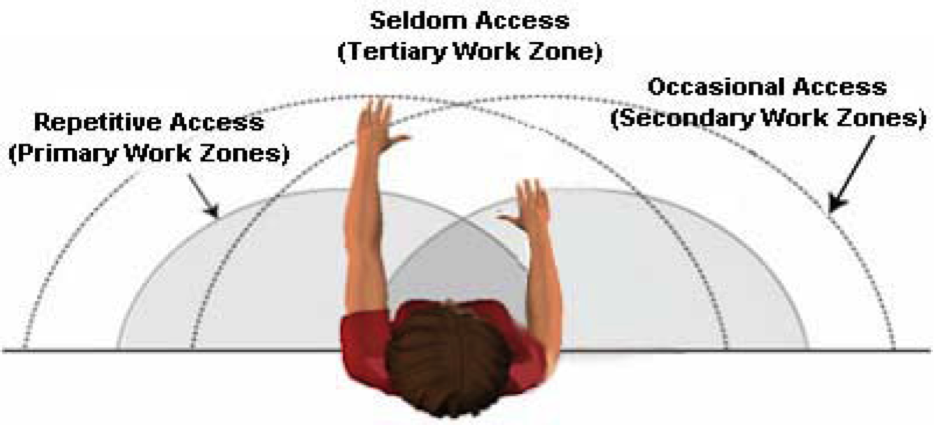
Keep items that are used often in the primary work zone (the area when elbows are at the sides and the hands are moved side to side).
-
Keep items that are used less often in the secondary work zone (area within the outstretched arms).
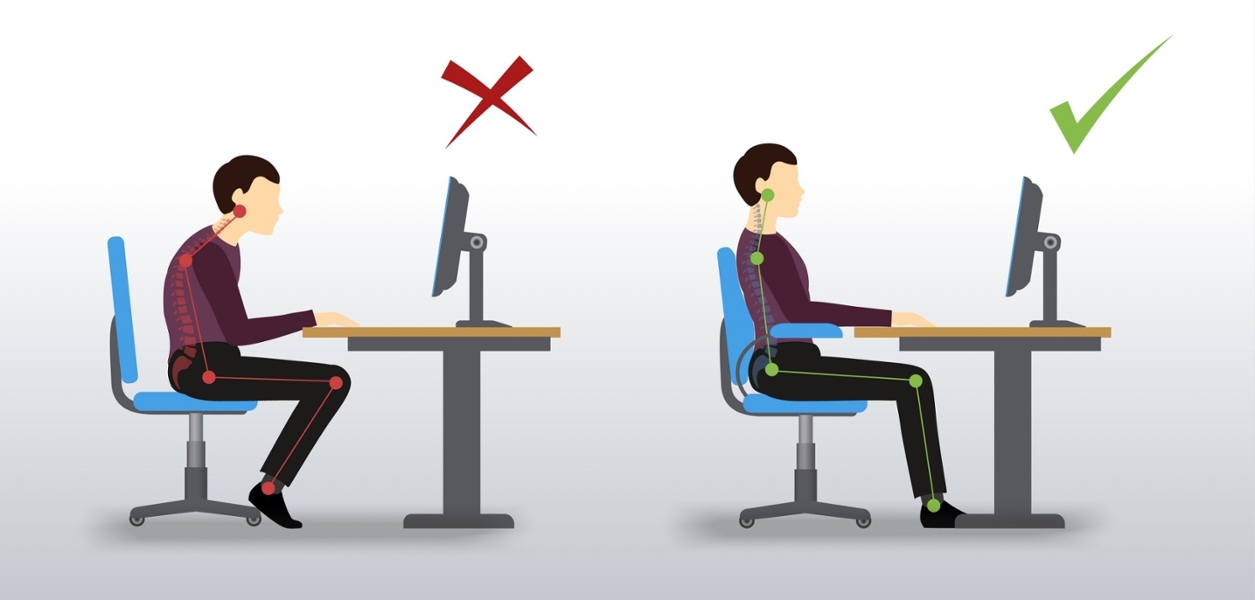
Neutral posture is the basis of good ergonomics and should include:
- Holding the neck straight, shoulders straight down loosely at the sides.
- Elbows at a 90-100 degree angle, and wrists straight at table level.
- The low back is supported on the back rest of the chair, hips are bent 90 degrees, knees are bent 90 degrees, and feet flat on the floor or on a footrest.
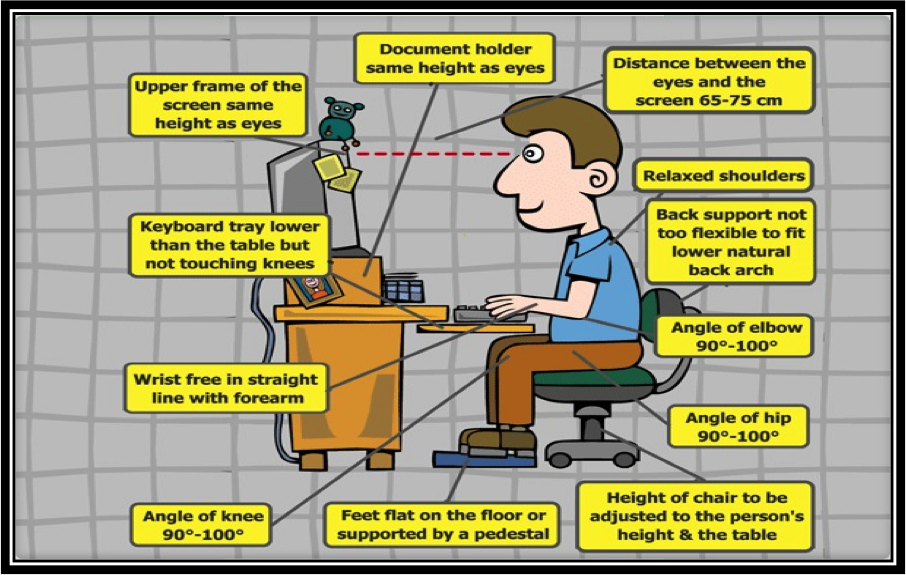
The ideal seated workstation components:
- Relaxed shoulders, back support not too flexible to fit lower natural back arch.
- Angle of elbows, hips and knees at 90-100 degrees.
- Height of chair adjusted to the person's height and the table.
- Feet flat on the floor or supported by a pedestal.
- Wrists free in straight line with the forearms.
- Keyboard tray lower than table but not touching the knees.
- Upper frame of the screen sames height as the eyes.
- Document holder same height as the eyes.
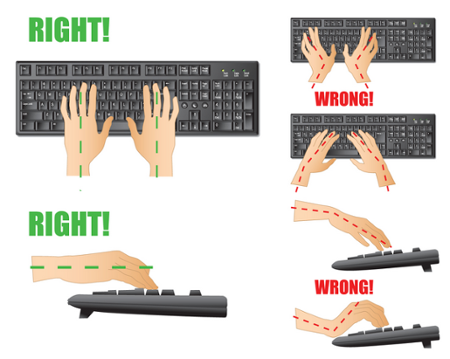
Deviating (bending) your wrists while typing or mousing for long periods can put strain on your tendons. Keeping your wrists in a neutral position can minimize these strains.
- Look at the positioning of your wrists and hands while typing, then adjust your work station to fit your wrists.
- If wrists bend upwards, flatten them out with a wrist rest.
- If wrists bend downwards, adjust desktop or chair height so elbows are even with keyboard.
- If wrists bend inward or outward, your keyboard may be the wrong size.
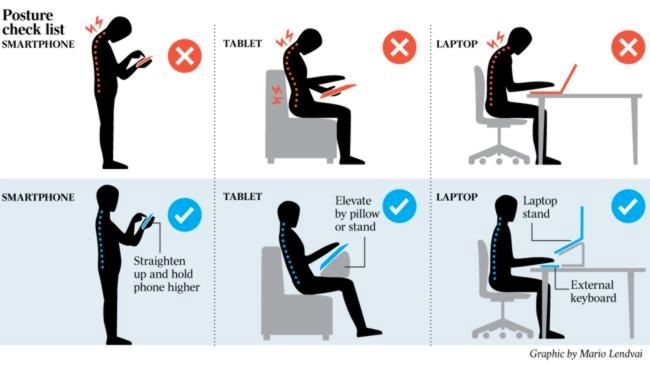
- Position the device so that your neck and back are straight and level.
- Use a headset whenever possible.
- Don’t brace a hand-held phone between your neck and shoulder.
- Keep your phone and headset nearby to prevent overreaching.
Stretching serves as an essential companion to a well-adjusted workspace, fostering the flexibility and physical balance needed to move through your day with ease. By incorporating intentional movement, you enhance your body’s natural resilience and comfort—ensuring you remain refreshed and energized whether you are sitting, standing, or engaged in focused, repetitive tasks.
- The 20-20-20 Rule: Every 20 minutes, look at something 20 feet away for at least 20 seconds to reduce eye strain.
- Micro-Breaks: Stand up, stretch, or walk for two minutes every hour. The best posture is your next posture!
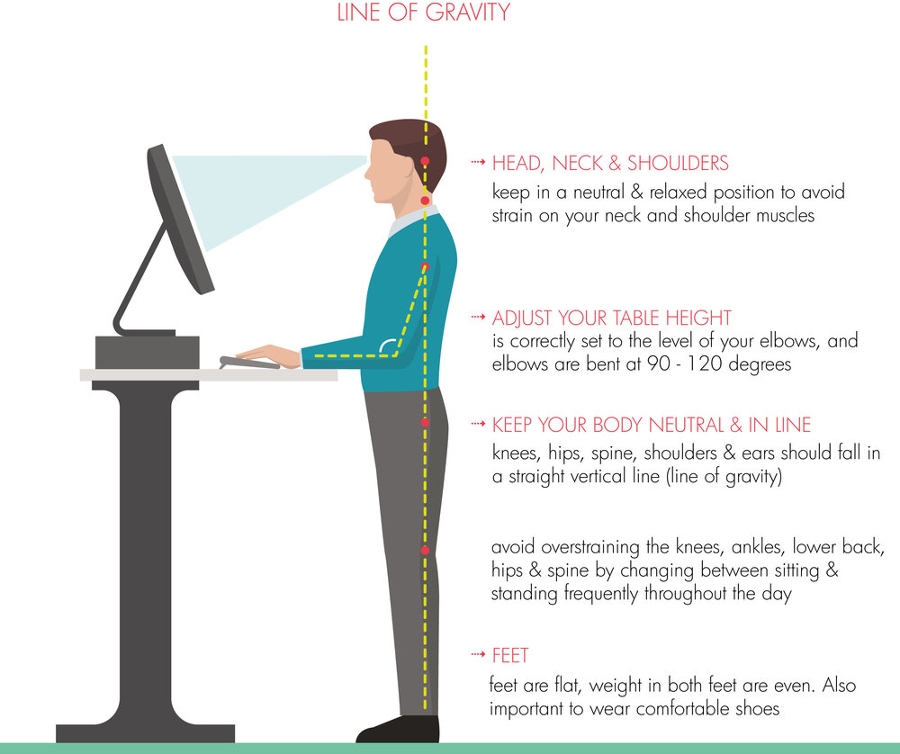
The ideal standing workstation components:
- Head, neck and shoulders - keep in a neutral and relaxed position to avoid strain on your neck and shoulder muscles.
- Adjust your table height - set the table height to the level of your elbows, and elbows are bent 90-120 degrees.
- Keep your body neutral and in line - knees, hips, spine, shoulders and ears should fall in a straight vertical line (line of gravity).
- Avoid overstraining knees, ankles, lower back, hips and spine by changing between sitting and standing frequently throughout the day.
- Feet - keep your feet flat, weight equally distributed on both feet. Wear comfortable shoes.
Classroom Ergonomics - Getting Started Checklist
The principles of ergonomics extend beyond the traditional office and into the dynamic environment of the classroom. By applying ergonomic strategies to these instructional spaces, faculty can engage with students comfortably and effectively throughout the academic day.
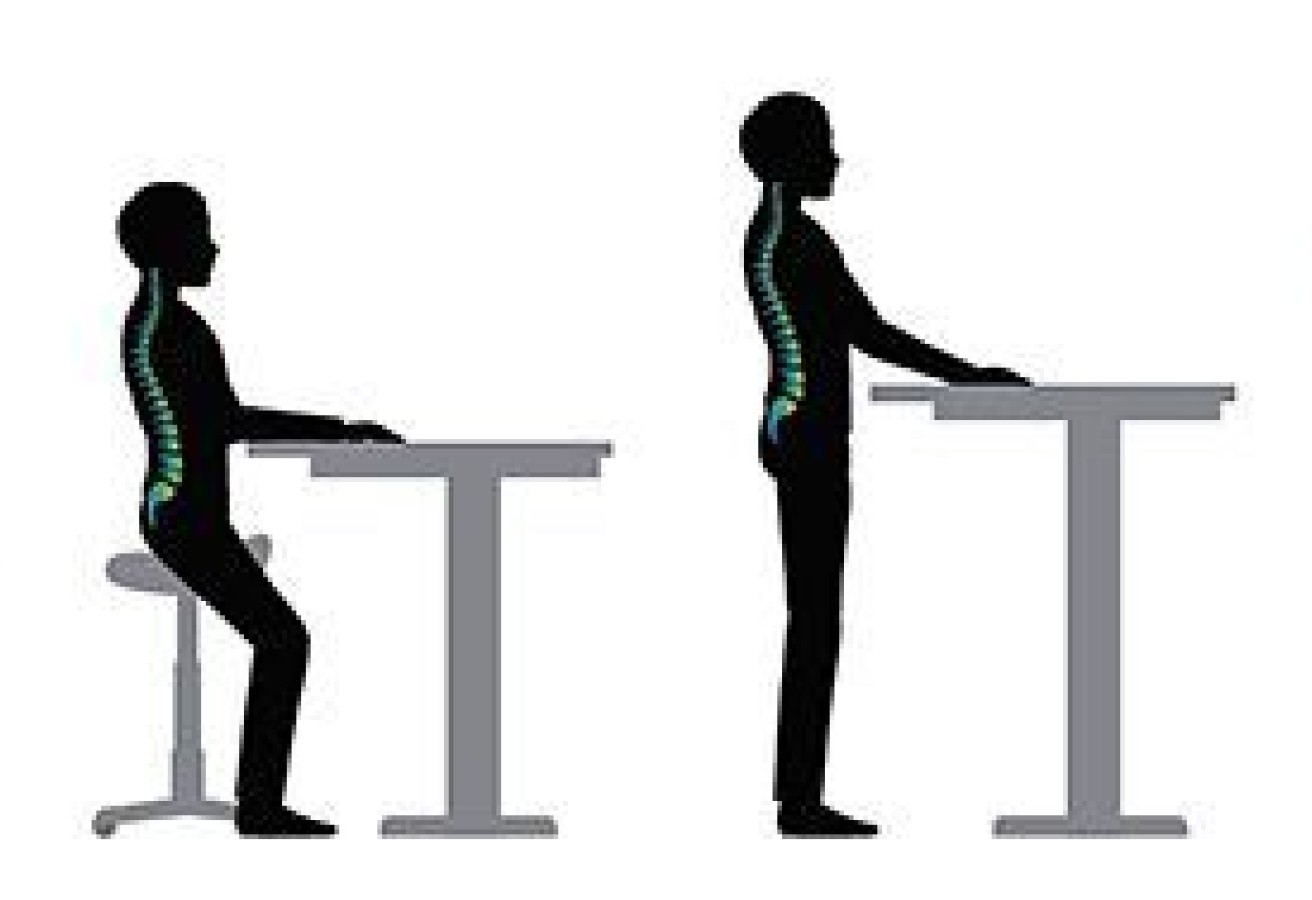
To set up an ergonomic podium:
- Adjust the podium height so your elbows are at a 90-degree angle with your forearms parallel to the floor when typing or using the mouse.
- Position the monitor so the top of the screen is at or slightly below eye level and about an arm's length away, and place the keyboard and mouse close to your body to avoid reaching.
- Ensure your feet are flat on the floor, or use a footrest to support your weight, and wear supportive footwear.
To reduce voice and postural strain:
- Practice proper posture with your shoulders over your hips, perform diaphragmatic breathing exercises, and warm up your voice before extensive use.
- Staying hydrated by drinking plenty of water and avoiding excessive caffeine and alcohol can also help prevent vocal strain.
Remote Workstation Ergonomics - Getting Started Checklist
The same principles of alignment and intentional movement are essential to maintaining your long-term health and comfort. The specialized checklist below will help you adapt your home surroundings, ensuring that your off-campus workspace is as supportive and productive as any office on site.
Identify a space on a desk or table to dedicate to computer use.
Remote Workstation Scenario:
- Don't work while sitting on a bed or couch for long periods of time.
Additionally:
-
Ensure enough table space for all work equipment and supplies.
-
Keep items that are used often in the primary work zone (the area when elbows are at the sides and the hands are moved side to side).
-
Keep items that are used less often in the secondary work zone (area within the outstretched arms).
Neutral posture is the basis of good ergonomics.
Remote Workstation Scenario:
- Use a chair with low back support and a seat cushion. Your feet should rest on the floor, a footrest, or a stack of books to keep your knees bent at 90 degrees.
- To create lumbar support, put a rolled towel or pillow behind the small of your back.
- To raise your elbows to the same level as your desktop, sit on pillows.
- Holding the neck straight, shoulders straight down loosely at the sides.
- Elbows at a 90-100 degree angle, and wrists straight at table level.
- The low back is supported on the back rest of the chair, hips are bent 90 degrees, knees are bent 90 degrees, and feet flat on the floor or on a footrest.
The ideal seated workstation components:
Remote Workstation Scenario:
- Use an external monitor or place laptop on a stand or books.
- The top of the monitor should be at eye level.
- Position the monitor perpendicular to windows to prevent backlighting or glare on the screen.
- Relaxed shoulders, back support not too flexible to fit lower natural back arch.
- Angle of elbows, hips and knees at 90-100 degrees.
- Height of chair adjusted to the person's height and the table.
- Feet flat on the floor or supported by a pedestal.
- Wrists free in straight line with the forearms.
- Keyboard tray lower than table but not touching the knees.
- Upper frame of the screen sames height as the eyes.
- Document holder same height as the eyes.
Deviating (bending) your wrists while typing or mousing for long periods can put strain on your tendons. Keeping your wrists in a neutral position can minimize these strains.
Remote Workstation Scenario:
- Use an external keyboard and mouse to allow your laptop to be raised to eye level; wireless keyboards and mice can be purchased online.
- Avoid reaching for your keyboard and mouse. Keep them close with your elbows bent at 90 degrees and wrists straight.
- Use your whole arm and shoulder to move your mouse instead of bending your wrist.
- Rest your hand on your mouse instead of pinching or squeezing.
- Look at the positioning of your wrists and hands while typing, then adjust your work station to fit your wrists.
- If wrists bend upwards, flatten them out with a wrist rest.
- If wrists bend downwards, adjust desktop or chair height so elbows are even with keyboard.
- If wrists bend inward or outward, your keyboard may be the wrong size.
Review the concepts in the checklist section above titled "Maintain: Neutral Posture" and apply them when using mobile devices.
Remote Workstation Scenario:
- Use speakerphone and voice commands when possible.
Additionally:
- Position the device so that your neck and back are straight and level.
- Use a headset whenever possible.
- Don’t brace a hand-held phone between your neck and shoulder.
- Keep your phone and headset nearby to prevent overreaching.
Stretching serves as an essential companion to a well-adjusted workspace, fostering the flexibility and physical balance needed to move through your day with ease. By incorporating intentional movement, you enhance your body’s natural resilience and comfort—ensuring you remain refreshed and energized whether you are sitting, standing, or engaged in focused, repetitive tasks.
Remote Workstation Scenario:
- At least every half hour - stand up, move around, or stretch for five minutes. Drink water.
- Alternate work tasks to avoid constant keyboard or mouse work.
- The “Micro Breaks” Google Chrome extension helps time your breaks.
- Copy and paste https://chrome.google.com/webstore/category/extensions?hl=en
- Search for “Micro Breaks” and install. Set your own break frequency and duration.
Additionally:
- The 20-20-20 Rule: Every 20 minutes, look at something 20 feet away for at least 20 seconds to reduce eye strain.
- Micro-Breaks: Stand up, stretch, or walk for two minutes every hour. The best posture is your next posture!
The ideal standing workstation components:
Remote Workstation Scenario:
- Use risers to raise the tabletop level to elbow height while standing.
- Use a riser or box to raise the top of your monitor to eye height while standing.
- Use an anti-fatigue mat and shift your weight often to reduce strain on your feet.
- Alternate between standing, sitting, and breaks.
Additionally:
- Head, neck and shoulders - keep in a neutral and relaxed position to avoid strain on your neck and shoulder muscles.
- Adjust your table height - set the table height to the level of your elbows, and elbows are bent 90-120 degrees.
- Keep your body neutral and in line - knees, hips, spine, shoulders and ears should fall in a straight vertical line (line of gravity).
- Avoid overstraining knees, ankles, lower back, hips and spine by changing between sitting and standing frequently throughout the day.
- Feet - keep your feet flat, weight equally distributed on both feet. Wear comfortable shoes.
Digital Library
To supplement our core checklists, we have curated an extensive Digital Library for those seeking a more comprehensive understanding of workspace design. These expanded resources allow for a deeper dive into the nuances of ergonomic theory and practice, providing you with the specialized knowledge to master your workstation setup for peak performance and long-term health.
Ergonomic Assessment Process
While our self-service resources are designed to resolve most common concerns, we recognize that some workspace configurations require a more personalized touch. If you have utilized our online guides and continue to experience challenges with your ergonomic comfort, the EHS team is ready to assist you through a professional assessment of your environment. We are committed to partnering with you to find the specific solutions necessary to ensure your workspace fully supports your health and long-term well-being.
Before contacting the EHS team, we request that you review our "Ergonomics Best Practices" training and symptom solver videos as the final step in your self-adjustment process. We ask that you enage with these expert-led tutorials before reaching out for a formal evaluation.
Ergonomics Best Practices - Computer Based Training
Ergonomics Best Practices - Symptom Solver
Once you have completed the videos, move on to the next section, "Completing the Ergonomic Assessment Request Form."
If you have diligently applied the checklists and best practices videos and are still experiencing persistent discomfort, you are encouraged to submit a request for a personalized ergonomic assessment.
Please fill out the Ergonomic Assessment Request Form, download it, save it as a PDF, and submit it with your Facilities Management work request in the next section below.
By submitting a request, you confirm that you have made a good-faith effort to optimize your workstation using the University's self-service resources and that further professional guidance is necessary to achieve a proper ergonomic fit. Employees may request an ergonomic assessment through:
- The Facilities Management Work Request system. Please attach your Ergonomic Assessment Request Form (from section above) in PDF format.
What happens next?
An EHS specialist will review your submitted form and the specific challenges you described. We will reach out to you within X business days. Depending on your needs, we may provide additional remote troubleshooting tips or schedule a time for a formal evaluation. If an evaluation is scheduled, please ensure your workstation is set up exactly as you typically use it so we can observe your daily workflow accurately.
The University of San Diego is committed to providing ergonomic guidance to all employees, regardless of their work location. Please note the following guidelines regarding equipment:
USD-Issued Equipment: For employees working on-campus or in a hybrid capacity using University-issued hardware, EHS will provide recommendations for adjustments and, when necessary, coordinate with departments regarding specific equipment needs.
Personal Equipment: While our team is happy to provide guidance and best-practice advice for those using personal equipment at home, the University is not responsible for the repair, replacement, or ergonomic modification of personally owned furniture or hardware.
Procurement: Please note that the EHS department provides assessments and recommendations; however, the purchase of any recommended ergonomic furniture (such as chairs or sit-stand converters) remains the budgetary responsibility of the employee’s individual department.