
Scheduling Features
Here are some features you can access when you're scheduling your meeting to make it more secure:

Password Protection
Password protect your meetings by clicking Require meeting password and entering an alphanumeric password when you schedule your meeting. The password is automatically populated in the calendar invitation. This means that only people with both the meeting ID and password can join your meeting.
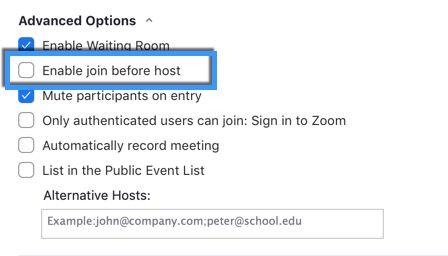
Join Before Host Options
When scheduling, you have the option to either allow participants to Join Before Host, or not. If you don't select this option, no one can join the meeting without you being there to start the meeting. This gives you greater control over the meeting. Even if you do enable Join Before Host, you will still receive an email notification when they join before you.
Waiting Room
Protect participant privacy by keeping some participants in your virtual waiting room while you finish up meeting with others. The Waiting Room can be enabled by default for all meetings or during scheduling on a per-meeting basis.
In-Meeting Features
The meeting host has a variety of controls they can use to secure their meeting. For example:
Lock the Meeting
When you're in the meeting, click 'Participants' at the bottom of your Zoom window. In the participants' pop-up box, you will see a button that says Lock Meeting. When you lock the meeting, no new participants can join, even if they have the meeting ID and password.
Remove a Participant
In the participants' menu, you can mouse over a participant's name, and several options will appear, including Remove. Click that to kick a participant out of the meeting. They can't get back in if you then click Lock Meeting.
Attendee On-Hold
If you need a private moment, you can put attendees on-hold. The attendee's video and audio connections will be disabled momentarily. Click on the attendee's video thumbnail and select Start Attendee On-Hold to activate this feature.
Other host controls include locking screen-sharing, enabling/disabling participant recording, watermarkinger screen shots, and disabling in-meeting chat.
More Information
Visit https://support/zoom.us/ for more information about Zoom features and settings