
Zoom is USD's video conferencing solution for students, faculty, and staff, offering a reliable platform for video, audio, chat, webinars, and quizzes. ZOOM is a leader in enterprise video communications with an easy-to-use, trusted interface.
Announcing new Features and updates
(January 2025)
Zoom docs transforms meeting content into actionable documents.
What Is Zoom Docs?
Zoom Docs is an AI-first collaborative document platform built into Zoom. It enables seamless creation, editing, and collaboration on documents.
How to Use Zoom Docs?
- Go to Docs in Zoom
Open Zoom and navigate to Docs from the menu. (IF you can't see it, click on the ... More Icon) - Click on the Arrow to set preferences
- To get a new Document going, click on the Docs Icon and then select Create to co-Edit on the top right.
Add your text directly in the document. All changes are saved automatically. - Hovering or selecting your text will allow you to:
🛠 Format text, insert images, create lists, and add other text modifications as needed. - Lastly, Click Share to collaborate
👥 Invited others by clicking Share and adjusting permissions.
✅ Check your settings - Sign in to Zoom, go to Settings → and check under Docs if it is toggled on.
View the knowledgebase documents on Zoom-Docs
(February 2025)
Zoom Calendar allows users to manage and schedule their Zoom or third-party calendar accounts through the Zoom desktop app.
To check your calendar settings and options:
1- Navigate to zoom.us/signin
2- On the left menu select Settings and on the tabs to the right, click on Mail & Calendar
If prompted, save your changes.
For more information:
View the knowledgebase documents on Zoom-Calendar
(February 2025)
"Zoom quiz" or "Zoom survey" allows users to create and administer quick polls or questions to participants.
To make sure your Zoom Survey options are activated in your account:
1- Navigate to zoom.us/signin
2- On the left menu select Settings and on the tabs to the right, make sure your AI Companion panel in Zoom Workplace is switched On.
3- On the Surveys tab you can customize additional settings to your Survey Settings.
If prompted, save your changes.
For more information:
View the knowledgebase document on Zoom-Quiz
(December 2024)
Zoom Whiteboard provides you a set of easy-to-use tools to collaborate together to capture ideas, processes, and concepts.
To make sure your Zoom Survey options are activated in your account:
1- Navigate to zoom.us/signin
2- On the left menu select Settings, and on the tabs to the right, make sure your AI Companion panel in Zoom Workplace is switched On.
3- On the Whiteboard tab you can turn on and customize additional settings.
If prompted, save your changes.
View the knowledgebase documents on Whiteboard
(November 2023)
Zoom Meeting Summary with AI Companion automatically summarizes the meeting's content and emails it to the host a few minutes after the meeting ends.
To make sure your Zoom Summary options are activated in your account:
1- Navigate to zoom.us/signin
2- On the left menu select Settings and on the tabs to the right, make sure your AI Companion panel in Zoom Workplace is switched On.
Please confirm that the 'Meeting Summary with AI Companion' feature is toggled on. (This setting is enabled by default by USD Zoom administrators.) If it is not enabled and you are not able to turn it on, please contact support@zoom.com.
View the knowledgebase documents on Meeting Summary
Zoom Storage (June 2020)
We are continuously purging Zoom videos as they reach 30 days (*) from the day they are created. You can download recordings to your computer, flash drive or Google Drive.
Zoom AI Companion Settings
If your Zoom AI Companion isn’t enabled by default, you can confirm in your settings to see if it’s turned on.
(Initially Zoom Ai features will be enabled by a ZOOM Admin). 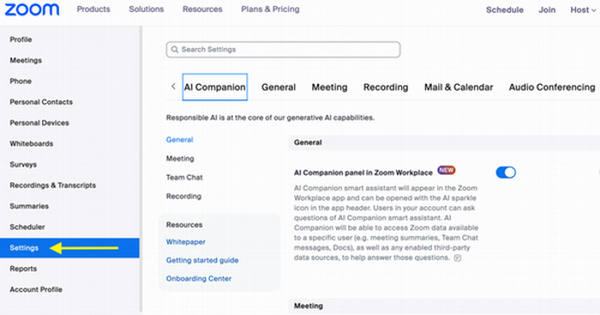
1- Check to Enable AI Companion in your Laptop/Desktop
- Sign in at zoom.us and go to Admin > Account Settings.
- Under AI Companion, toggle features on and save.
2- Verify in Zoom App – Open Zoom, go to Settings > AI Companion, and check availability on other Ai-options in your settings.
For details, visit Zoom Support.
Zoom to Panopto
Schedule your Zoom Meetings to go to the correct Panopto course folders.
Your default folder in Panopto for Zoom recordings in currently set to Meetings Recordings. View this document to see how to change your default folder.
Zoom in Canvas (Best for Teaching Courses)
- Video/Audio
- Synchronous or asynchronous
- Record session (plus audio transcript)
- Schedule meetings in Canvas
- Roster integration
- Archive ready for students in Canvas
- Automatic notification to all students
- Assignments, quizzes, and post grades
Zoom Standalone (Best for Business and Research Meetings)
- Video/Audio
- Synchronous or asynchronous
- Record session (plus audio transcript)
- Schedule meetings from calendar or Zoom
How the Zoom passcodes and waiting room requirements affect you.
How to save your Zoom recordings to the correct Panopto course folders.
Pre-recorded, Asynchronous Lectures and Videos with Recordings
Zoom is a simple way to record your voice and screen and upload your videos to a place where students can view it in Canvas.
Tips and Tricks:
- Use a headset with a microphone for better audio quality. Using the earbud that connect to your phone or the microphone built into your laptop is a perfect solution
- You don't need to use your webcam. Say Hi! via your webcam at the beginning of the lecture and then turn it off to minimize distraction.
- Zoom cloud records can produce automatic transcriptions that are searchable.
- Prepare an outline of your lecture and try to stick to it. Don't worry about having pauses or verbal static (ums, ahs, etc).
- Put your phone away and clear your desk of any distractions.
- Record your lecture in smaller manageable chunks, segmented by topic. Try to get close to 10-12 minutes per segment.
Instructional Design Tips:
- Spend less time reviewing what the student should have read in the textbook. Focus on bringing in your own expertise in how YOU interpret the concepts.
- Tell a story of how the concepts are applied in real life.
- Ask yourself, does this content exist anywhere else (i.e. TED talk, youtube, publisher material)? Has someone already created it? How can I build on what has already been created?
Getting Started With Zoom Pro
USD has an enterprise/campus-wide agreement. Gain access to your account below.
- You can access Zoom anywhere on the web or using a desktop client.
- Zoom Meetings allow up to 300 participants to share their audio, video, chat, and screens.
- Anyone in the world can join a Zoom meeting, but only a host can start and schedule meetings.
- Zoom works on PC, Mac, Android, and iOS devices.
- Zoom integrates with Canvas Learn. On-demand training (pre-recorded session).
- Zoom integrates with Google Apps.
- Zoom recordings can be stored in the cloud or on the desktop.
Using Zoom Storage with Panopto and Canvas (Best Practices)
The USD Enterprise Zoom account has limited storage and recordings will be deleted every 30 days after the creation date. There are a few ways to save and store your recorded meetings.
Scenario 1: No Zoom or Panopto Account but Canvas Account
- Step 1: Activate your Zoom account.
- Step 2: Login to Canvas and activate your Panopto account from within your Canvas course. By activating through Canvas you’ll have a Creator Role so you can create and manage all your Zoom recordings that get copied over to Panopto's cloud storage where you currently have unlimited space available.
Scenario 2: Zoom Account but not Canvas or Panopto
- If you do not have a Canvas course, and wish to keep a copy of your meeting recordings, we still recommend that you activate your Panopto account.
- Another option for keeping your Zoom recordings is to download and keep a copy on your Google Drive, as Zoom recordings get purged every 30 days.
Zoom Support
Submit a Ticket via this Zoom Support Link or send us a support email at support@zoom.com.
To check on Zoom Service Status: status.zoom.us