
Zoom Phone enables secure voice calls across all supported devices. For any questions, please contact zoomphone@sandiego.edu or help@sandiego.edu.
Instructions
In order to use Zoom Phone on your laptop or desktop computer, you will need to download the Zoom Client. Below are the step-by-step instructions.
Please note: the screenshots below were taken on a Mac computer. The process will be the same for a Windows computer, but may look a little different.
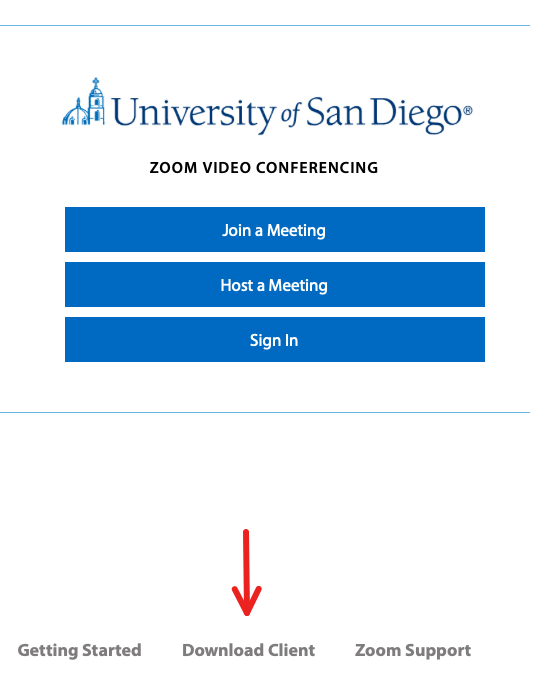
1. Please visit https://sandiego.zoom.us/ and click on Download Client at the bottom of the screen.
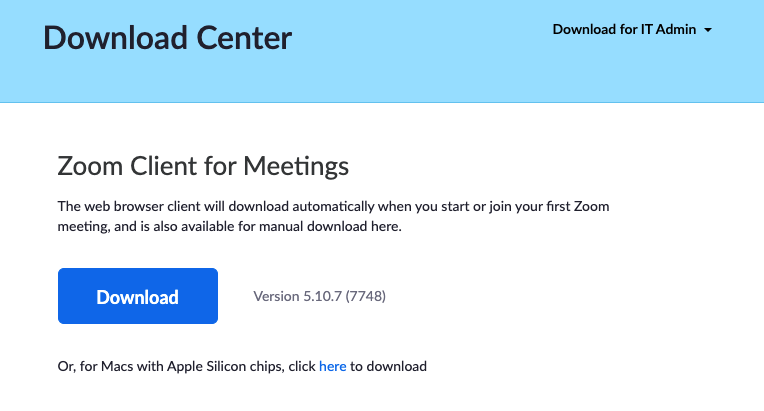
2. On the Download Center page, click on the Download button under Zoom Client for Meetings. This client will include Zoom Phone.
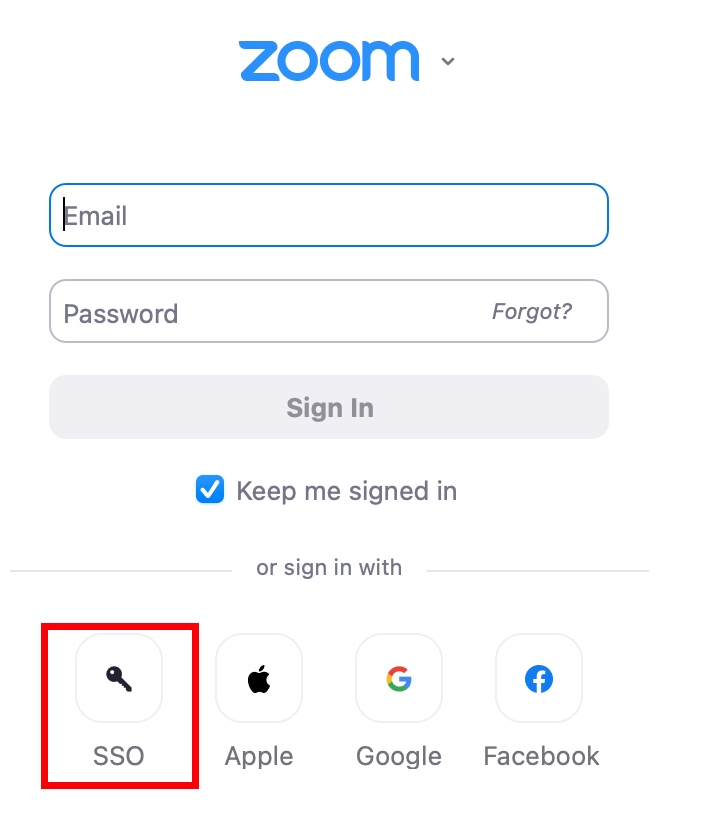
3. Once the client has downloaded, log into your Zoom Account using SSO only.
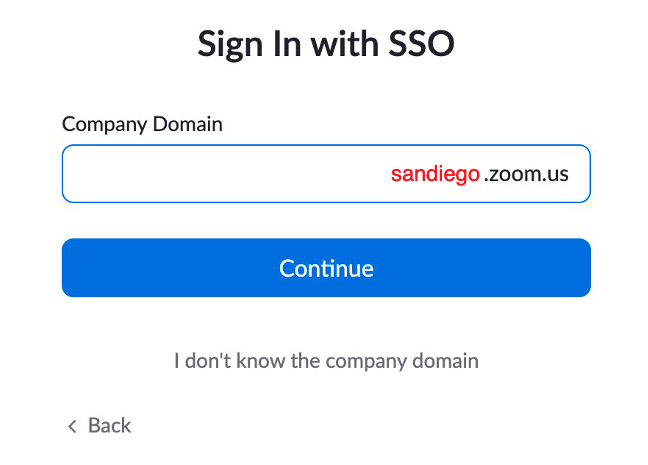
4. When asked, enter sandiego for your company domain.
5. Once you have logged into your Zoom Client and your Zoom Phone account is active, you will see a phone icon at the top of the Zoom Client screen.
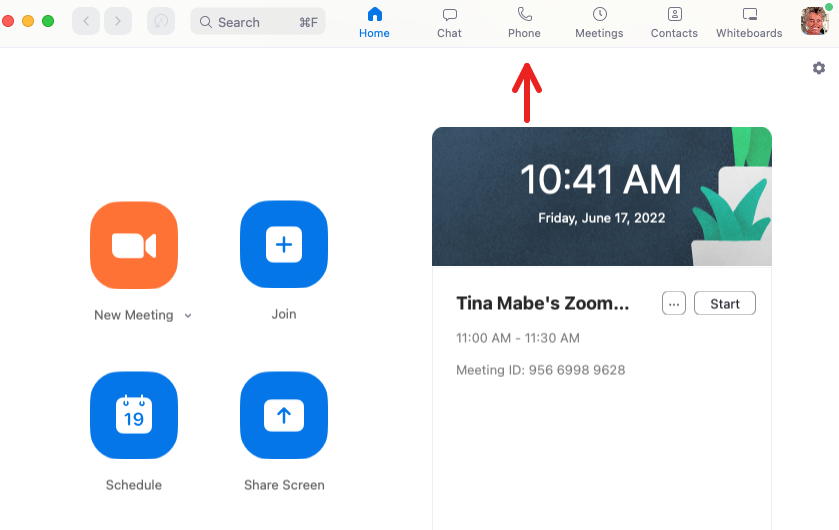
6. Click on the phone icon and this will take you to your Zoom Phone console.
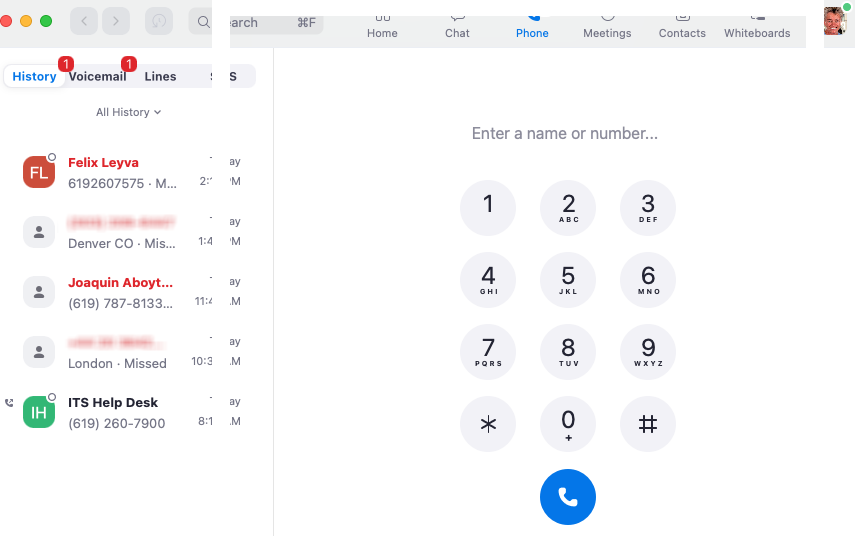
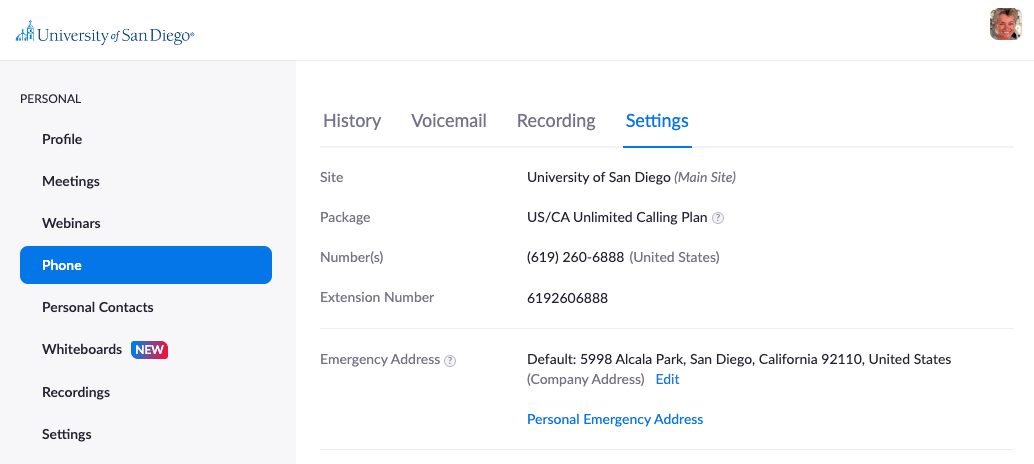
1. To set up your voicemail you will need to log into the Zoom Web Portal. Go to sandiego.zoom.us and sign in to your Zoom account.

2. Click on the Phone menu item on the left pane.
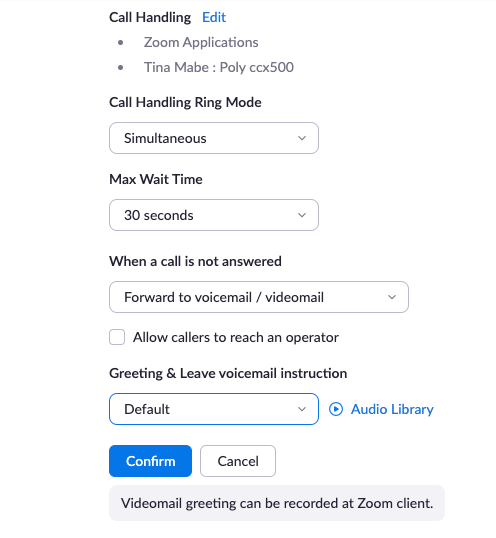
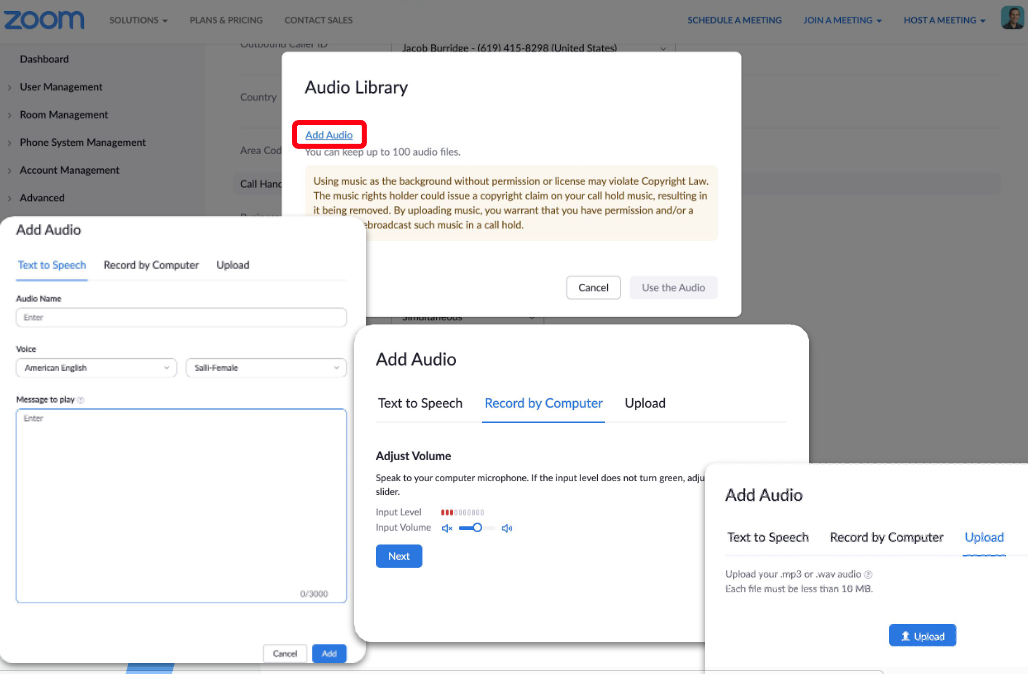
3. Scroll down to Call Handling and open the Audio Library link to set up your voicemail greeting.
4. Click Add Audio to select which method you would like to use to create your voicemail greeting. Options are; text to speech, record from computer or upload a file already created.
5. Setting your voicemail pin (only necessary for deskphone users). In the same section as call handling, scroll down to PIN Code, click Show or Edit.
Google Calendar and Contacts Integration (this allows you to see your appointments in the Zoom Phone Client).
1. In the web portal click on Profile on the left pane. Scroll down to Calendar and Contacts Integration. Click Configure Calendar and Contacts Service. Select Google and then click next.

3. Select which account you want to sync and then click continue to finish the integration.