
USD Retention Policy for Panopto
Our initial agreement with Panopto back in 2020 was for “unlimited” storage. However, the terms of the agreement have changed and it is no longer “free”.
Panopto has implemented a new pricing model that will impact our video management process. It will be based on:
- Created hours: hours of video recorded or uploaded into Panopto
- Archived hours: total number of hours of video stored in the Panopto archive
As a result, we updated our archival and retention policy for all Panopto videos at USD.
Since 2020 we have accumulated over 404,000 usage hours of videos have been posted to Panopto. Many of which included Zoom videos integrated into Panopto. These video file sizes in everyday instruction can be huge and take up unneccessary storage if not viewed.
Due to the new pricing model with Panopto and cost associated with amount of storage we are taking up, it is extremely important for us to clean up and remove any unneeded content from your Panopto storage. We appreciate your cooperation in this matter.
Revised Retention Policy
We are making a minor modification to the policy that was established in January 2022 archiving any content not viewed after 2 years then archived indefinitely. The new policy is reflecting a 4 year phased approach from the last time a video has been viewed.
The revised retention policy is as follows (April 15, 2024).
- Recordings that have not been viewed in 2 years will be moved to the Archive.
- If these recordings are not viewed or retrieved in 4 years after being moved to the Archive, they will be deleted.
- Recordings from 2020-2022 not viewed will also go into the Archive and then deleted per the retention policy.
- This policy is for the last time the video has been viewed and not when the video was originally uploaded.
The Purpose of this New Policy
This policy will reduce university security risks, limit liability to legacy content, and adjusts to the new pricing model of charging for stored content.
What content is Included in the Retention Policy?
All recordings created and uploaded into Panopto including:
- Videos in "My Folder" which is your main folder.
- Videos in Blackboard/Canvas course folders.
- Zoom recordings that are automatically transferred to Panopto.
- Videos in any other folder or subfolder.
All your recordings can be viewed at sandiego.hosted.panopto.com or from the Panopto tool link in Canvas where you can navigate through all your courses and folders.
Retention Policy Timeline
Original Policy:
| Implementation date | Content | Action Taken | Content retrievable? |
|---|---|---|---|
| January 2022 | Recordings not viewed in 2 years go to Archive | Archived, Never Deleted | Yes - allow up to 48 hours |
Updated Policy
| Implementation date | Content | Action Taken | Content retrievable? |
|---|---|---|---|
| April 2024 | Recordings not viewed in past 2 years (or before that) | Archived | Yes - allow up to 48 hours |
| April 2024 | Archived recordings not viewed in the next 4 years. | Content begins to delete (April 2028) |
Cannot retrieve after deleted |
Who is the Panopto Retention Policy for?
The Panopto retention policy is for faculty and staff who have:
- Recorded Zoom videos to the cloud. These videos automatically transfer to your Panopto account.
- Uploaded video files to sandiego.hosted.panopto.com.
- Recorded videos using the Panopto desktop app that are then uploaded to your Panopto account.
- Uploaded video files through the Panopto tool link in Blackboard or Canvas.
What do I need to do?
- If you do not need to retain your older Zoom Cloud recordings in Panopto then no action is necessary. They will be automatically archived and deleted.
- If you wish to prevent your Zoom Cloud recordings that were moved to Panopto and have not been viewed from being archived then you (or your viewers) simply need to watch them in Panopto.
Deleted Recordings
Can I delete a recording or a folder I don’t need?
Yes! We encourage all staff and faculty to delete recordings they do not need. The best place to start is to go into your Panopto account at sandiego.hosted.panopto.com then click on the "Meeting Recordings" folder. You will see all your past Zoom recordings there that are not part of a course folder.
Will I receive a message before my recordings are archived or deleted?
Currently, there isn't a way to receive a notification before your videos are archived or deleted. Panopto is working on notifications about pending retention actions.
Where do I Find My Archived Recordings?
NOTE: While the process is simple to restore an archived video, it can take up to 48 hours to restore for viewing.
Canvas
- In the left navigation, click Panopto Video.
- A link to archived recordings appears in your default course folder. You can also select "My Folder" to see all your archived videos in all your folders.

Panopto Search
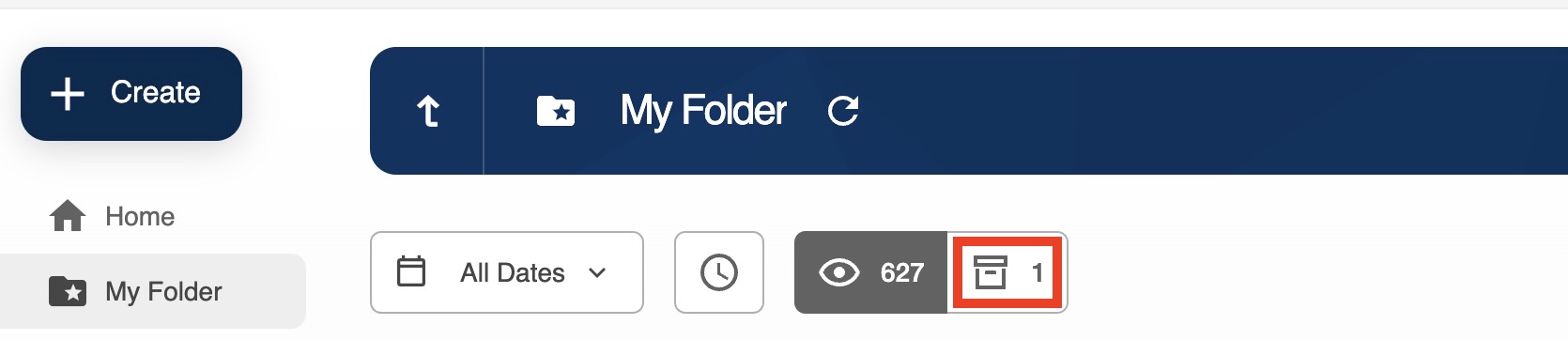
You can also go to sandiego.hosted.panopto.com and click the "My Folder" tab. You can search all dates or specific dates and the search results will display archived recordings.
Once you click on the "Restore from Archive" button you will see your Archived videos.
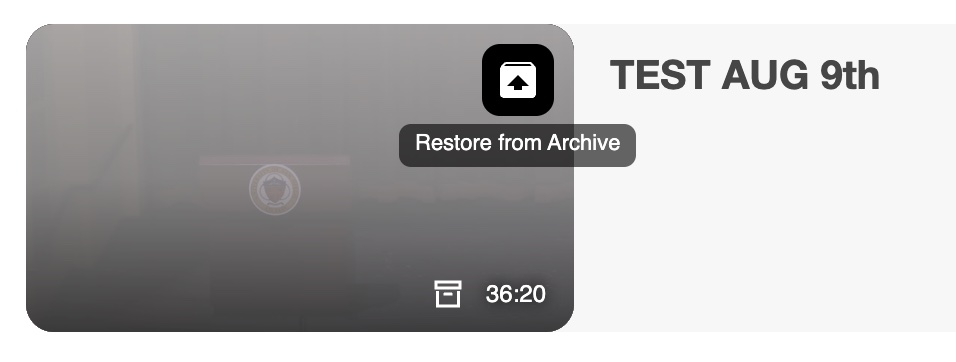
Restoring Back to Original Panopto Folders
- Archived videos will still be associated with their original folder.
- Restored videos will appear in their associated folder once they are ready to view.
Restoring Archived Videos
How do I restore archived recordings?
See Panopto documentation on how to restore archived recordings.
When I restore a video from the archive, how long will the video be available in my Panopto account?
The video will be available for another 2 years unless it is viewed which will then give it another 2 years before the video moves to the Archive folder for 4 years. This process will continue to repeat.
What happens if a video goes to the Archive and someone tries to view it?
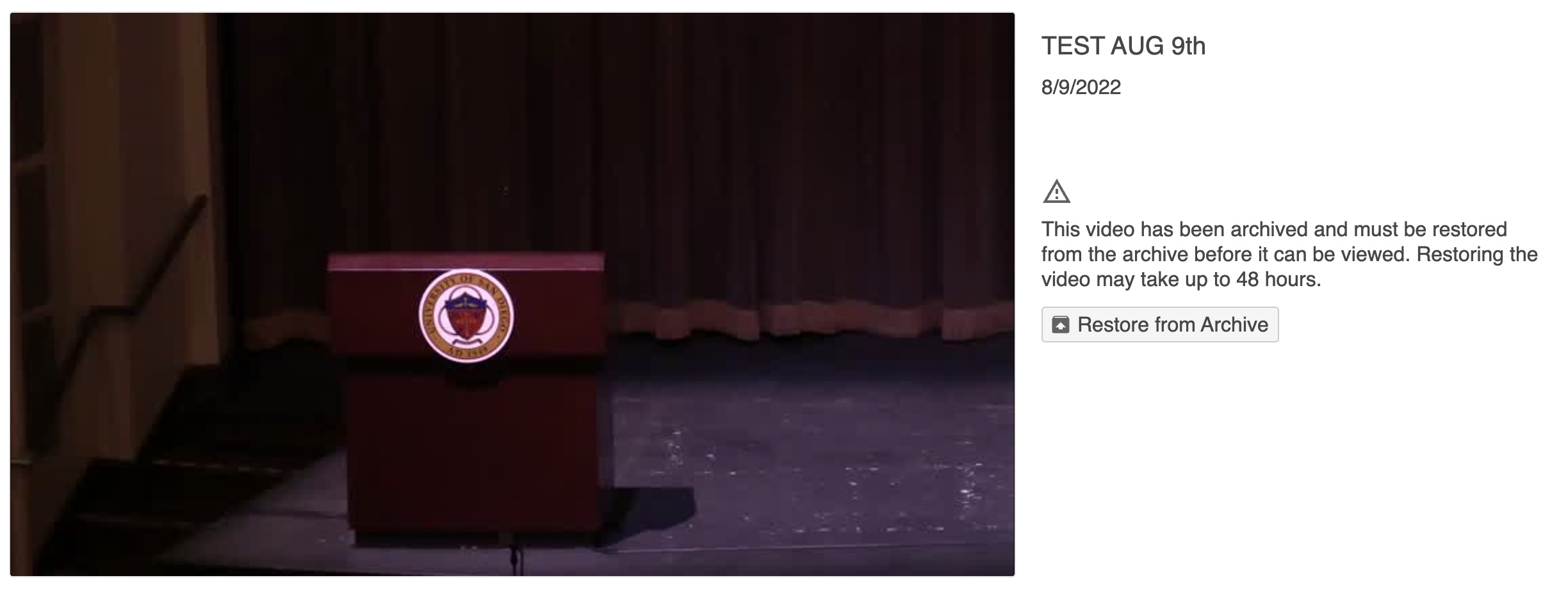
If a student views an archived video embedded in an active course, they will see a message:
"This video has been archived and must be restored from the archive before it can be viewed. Restoring the video may take up to 48 hours”.
The student can initiate the restoration process.
NOTE: If a viewer outside of Canvas tries to view an embedded video in the Archive they will see the same message and the video will be restored once the button is pressed.
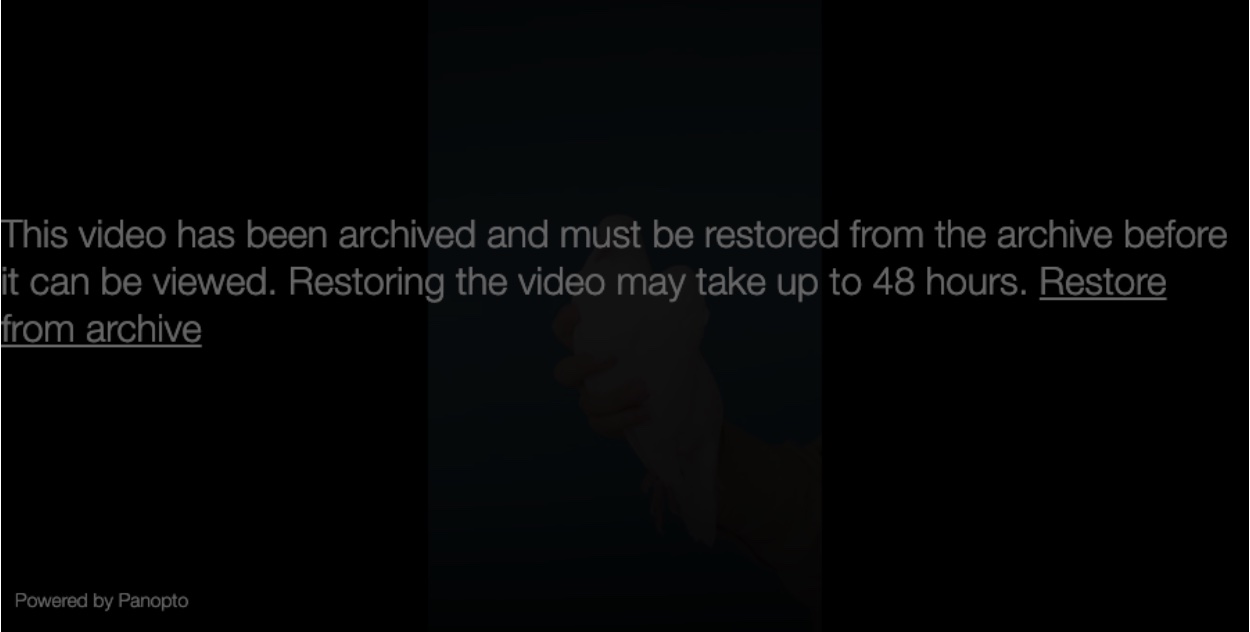
If a student or anyone else tries to view a direct link to a full screen Panopto URL, they will see this message where they have the option to restore the video to view.
Keeping Recordings
How do I keep important recordings?
Some recordings in self-created folders or automatically generated Canvas folders will need to be kept in Panopto to be reused (e.g. videos that are repeated over time in semesters). In these cases, we recommend recordings should be moved from the course folder to your “My Folder” for your own organizational purposes. Once the recording has been moved to your "My Folder", you may consider making a reference copy of the video and move the reference copy to your Canvas course folder.
What are reference copies?
A reference copy of a recording will be included in the archival/deletion actions in this retention policy. The original source video will be exempt from archival and deletion as long as it has an active reference copy. The original recording will not be archived or deleted until the reference copies have aged to the point of being subject to the retention policy.
How do I know when my recording has last been viewed?
You can look at viewer statistics for your recording. You can also view statistics for an entire folder. To see statistics for 24 months or 2 years, select Custom and then select the date range. Viewer statistics are not available for archived recordings.
When should I move videos instead of copying them?
If you will be showing past videos in future courses, you can move (instead of copy) your videos from a past Panopto course folder to a future course folder and as long as the videos are viewed even once, they will stay out of the Archive for 13 months.
How can I keep certain videos in a folder frm being archived?
Move specific videos to your "My Folder" for now. Although keep in mind if these videos aren't viewed within 13 months from the time you put them in your "My Folder" they will then go to the Archive for another 11 months before being deleted. This gives you 2 years from the time you move them to your "My Folder".
How can I download recordings and captions I would like to keep?
You can download Panopto recordings individually as MP4 files. To download captions, see Panopto’s instructions for how to download captions.
Other Questions
What’s the difference between archived, deleted, permanently deleted and recycled?
- Archived recordings can be restored for viewing within 48 hours.
- Archived videos cannot be manually deleted. They can only be permanently deleted after 11 months automatically.
- Permanently deleted recordings cannot be retrieved. Creators can also permanently delete recordings in the recycle bin from videos they have manually deleted.
Will the retention policy change?
The USD Panopto service team does not anticipate revising the retention policy, but adjustments may occur depending on changes in usage or contract revisions.