

Starting April 14, 2025, we will be implementing 2-Step Verification (also known as two-factor authentication or 2FA) using an authenticator app for all USD Alumni Google Accounts. This additional layer of security is being introduced to safeguard your email accounts and ensure the confidentiality of your personal information.
Why the Change?
2-Step Verification adds an extra layer of security by requiring not only your password but also a second form of verification to access your account. This significantly reduces the risk of unauthorized access, phishing attacks, and identity theft. Even if someone obtains your password and tries to access your account, they would still need your authenticator app access to log in.
Once 2-Step Verification is set up, you'll need to use the Google Authenticator app to generate a unique verification code each time you log in to your USD Google Account on a new device, in addition to entering your password.
We understand security measures like these may require an adjustment, but we believe the added protection to your account is well worth it. Thank you for your cooperation in helping us maintain a secure online environment for the USD community.
More detailed instructions with screenshots to guide you through the process are located below.
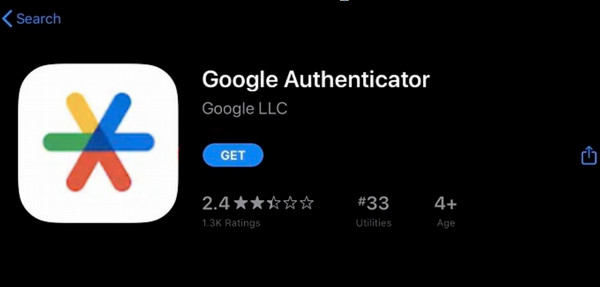
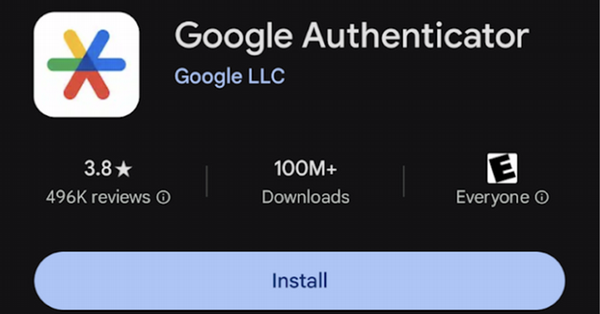
- To get started, visit either Google Play store or the iPhone App Store and download the Google Authenticator app by searching for it. This authenticator app is the only app that will work for USD alumni authentication.
- Navigate to: my.sandiego.edu on your computer
- Login using your USDOne credentials.
- You will be presented with this screen:
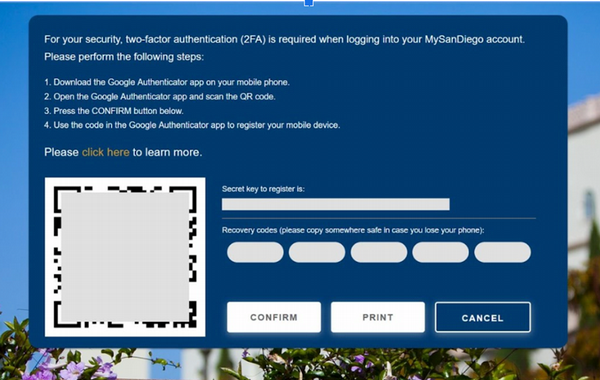
- While this screen is showing, open the Google Authenticator app on your mobile device
- Tap the + in the bottom right corner (or click the ‘Add a Code’ button)
⚠️ Important: Save the backup codes that Google provides in a safe and secure place. These codes will be essential if you lose access to your phone or your authenticator app. You can print them, write them down and store them securely, or use a password manager. Do not store these codes anywhere in your @sandiego account. Because these codes are Google related, USD ITS cannot retrieve them if they are lost.
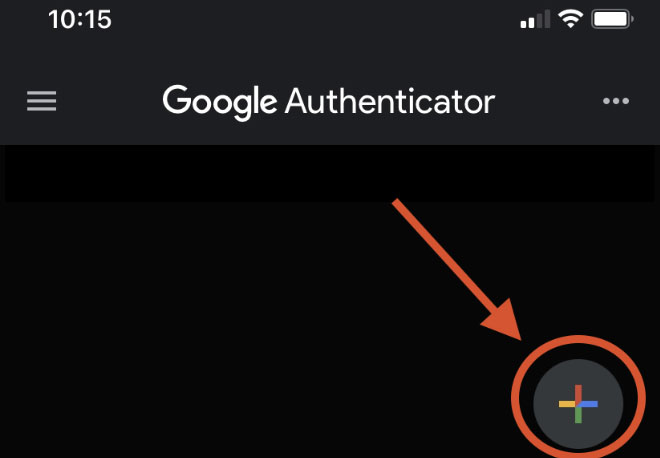
- Select a setup method.
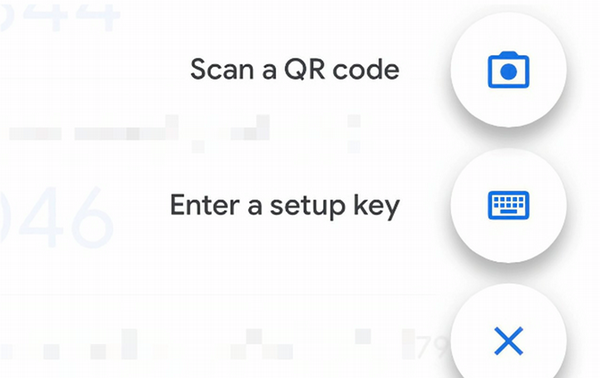

- The ‘Scan a QR code’ option is the most common—choosing this option will open up the camera on your phone.
- ATTENTION: Ensure you are utilizing Google Authenticator to take a picture of the QR code. Do not use your camera app, it will not work for authentication.
- Using your phone, scan the QR code from the ToreroMail login screen.
- Please ensure to scan the QR code only once. This will ensure a successful account entry
- If the QR code is scanned multiple times, duplicate account entries will appear which will prevent you from proceeding further in the setup process.
- If you see duplicate account entries in authenticator, they need to be removed and the setup process needs to be restarted.
- How to remove account entries:
- iOS
- Swipe the account entry to the left. You will see a "Pencil" and "Trashcan" option. Press the trashcan and follow the prompt (Remove Account) to remove the duplicate entry
- Android
- Swipe the account in Google Authenticator to the left. You will see a "Trashcan" icon as you are swiping left. Then, follow the prompt (Remove Account) to remove the duplicate entry.
- iOS
- How to remove account entries:
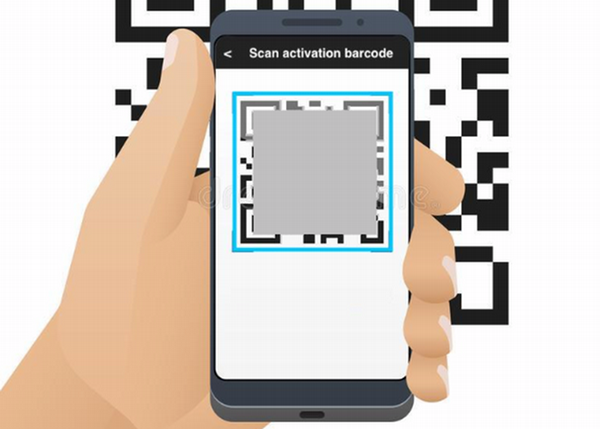
- Alternatively, you can choose the ‘Enter a setup key’ option and enter the Secret Key listed to the right of the QR code on the ToreroMail login screen.
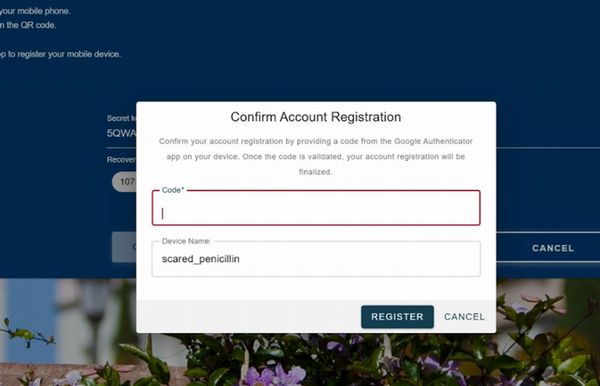
- Click the ‘Confirm’ button on the registration screen
- In the ‘Code’ field, enter the 6-digit token displayed in the Google Authenticator; in the ‘Device Name’ field, enter a name for your device
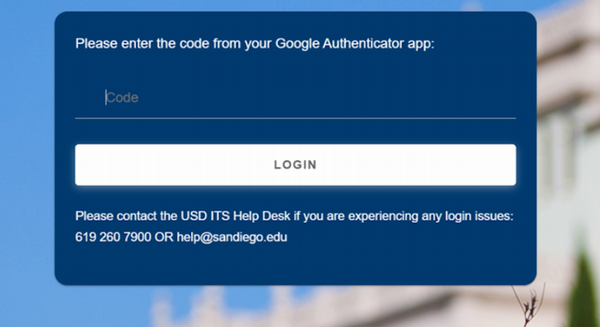
- Your USD account is now configured for Multifactor Authentication; upon logging in, you will now see the following screen where you will enter the 6-digit token listed in the Google Authenticator app
USDOne:
If you are unable to login to your USDOne account because of a forgotten username or credentials, please login to https://usdone.sandiego.edu/USDOne/. You can find your username, reset your password, or change your security questions here.
Google Authentication:
If you have misplaced your Google Authentication backup codes, have changed your related mobile device app, or need help resetting your Google Authentication login, please contact the USD ITS Help Desk.
If you don't have access to a smartphone or tablet, you can use your computer Chrome web browser (Mac, PC) as an alternative. As it turns out, there is no landline phone option for authentication.
Utilizing the approved Google Chrome Authenticator CC browser extension add in, you can install and configure 2FA to login. If you need help with setting up the Authenticator CC browser extension, please follow the Authenticator CC extension setup instructions.
If you need help with Google Chrome Extension installation, please follow the Google Chrome Extension Installation Instructions.
Before downloading this addin, ensure you are logged into your Chrome browser using a personal Gmail account profile. This ensures the addin will function properly.
If you encounter difficulties during the setup process or have questions, please don't hesitate to reach out to our support team at the USD ITS Help Desk @ 619-260-7900, help@sandiego.edu.
You can also review the Google Help for 2-Step Verification webpage for more information.