

Zoom and Panopto are external tools that are integrated in Canvas to enhance your teaching experience. With this integration, you can:
- Easily create and record Zoom meetings directly from Canvas. This process saves time and ensures all of your sessions are organized in one place.
- Automatically add your Zoom recordings to Panopto. This feature allows you to effortlessly share recorded sessions with your students, ensuring they have access to all the necessary materials.
- Utilize Panopto to create and upload additional video content. Whether it's pre-recorded lectures, tutorials, or supplementary materials, Panopto provides a platform for all your video content needs.
Zoom & Panopto FAQs
- Click on Zoom in the Canvas navigation menu in your course
- Click on Schedule a New Meeting
- Adjust the settings and select Save
You can now start your Zoom meetings from Canvas and students can join the meeting from Canvas. No need to send students the meeting id!
To ensure that recordings of Zoom meetings that you create and start within Canvas automatically show up in Panopto do the following:
- Enable Panopto in your left-hand course navigation menu (How do I manage Course Navigation links?).
- Click on Panopto in the course navigation menu.
- Go to Zoom in the Course Navigation menu to set up your Zoom meeting.
- At the bottom of the Zoom meeting set up, there is a Tracking Field: panopto_folder_context field. If your Zoom meeting is connected to Panopto, you will see your Canvas course id in that box.
- If the box is empty, you can manually enter in the Canvas course id. The Canvas course id is the 4 digits at the end of your course URL.
If you started the Zoom meeting from within Canvas, the recording should be in Panopto. If it is not in the Panopto course folder, you should find it in your Meeting Recordings folder.
- Click on Panopto in the Canvas course navigation menu
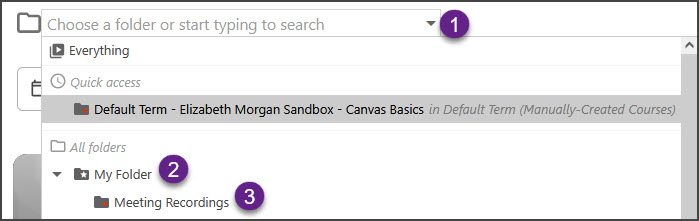
- Click on the Panopto course folder, select My Folder, and then select the Meeting Recordings folder
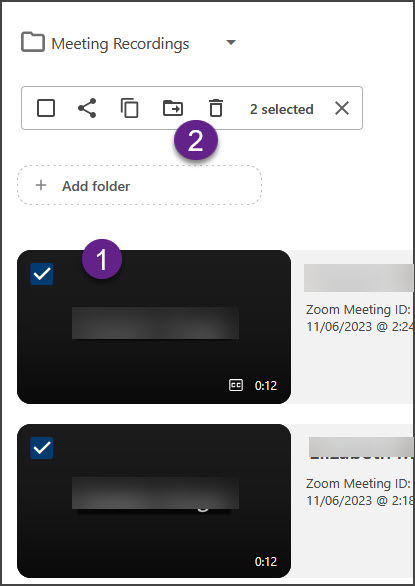
- Select the check box in the upper left of any videos you want to move and select the Move button at the top
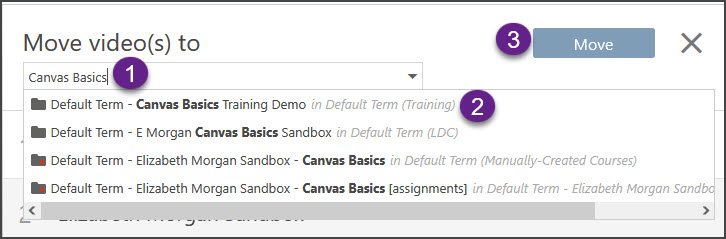
- Type the course id into the search box and choose the Panopto folder for your course
You can add a link for a Panopto videos directly to a module by doing the following:
- Click on the + sign on the right-hand side of a module
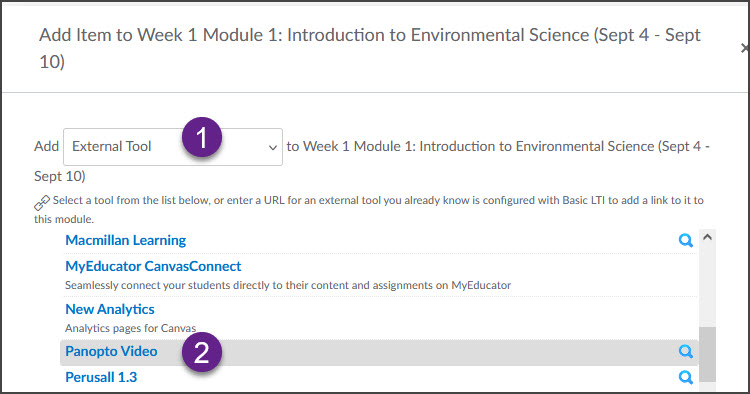
- Choose External Tool from the drop-down box and select Panopto Video
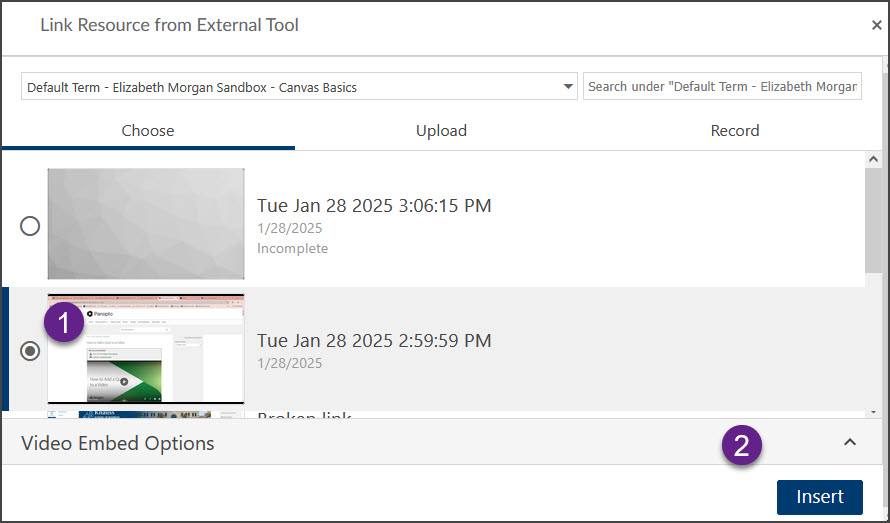
- Select the video you want to add, click Insert, and then click Add Item
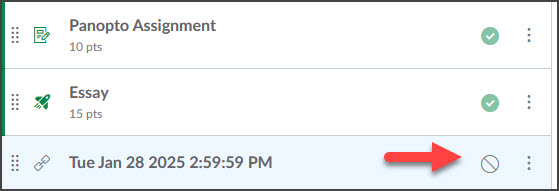
- The video link will appear at the bottom of the module. You can click and drag it to where you want it to be in the module. Remember to Publish by clicking on the slashed circle icon.
You may embed a Panopto video anywhere in the course where you have access to the text editor such as Pages, Announcements or Discussions. To embed a Panopto video in the text editor, do the following:
- Click on the Panopto icon in the rich content editor

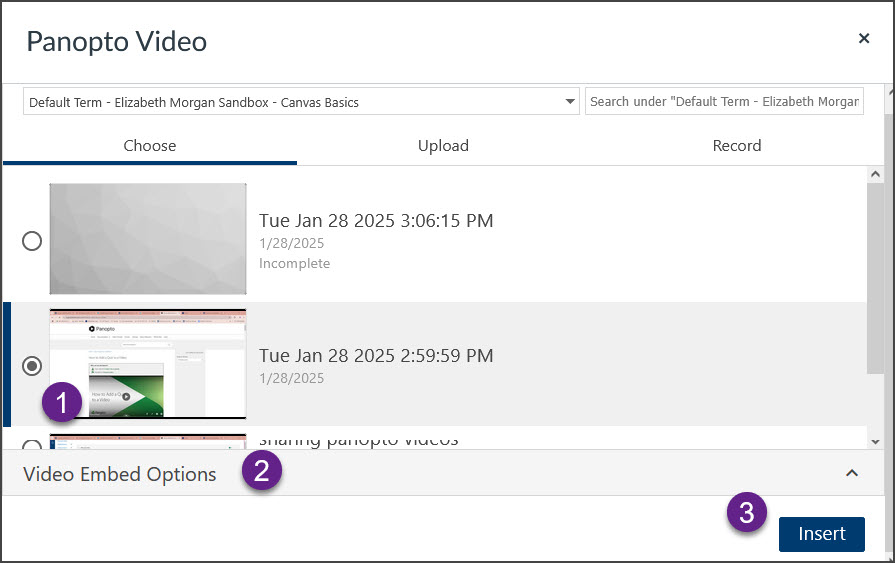
- Select the video you want to embed, choose Video Embed Options if you want to adjust the settings, and then select Insert
You can allow students to submit a Panopto video as part of an assignment. To set this up, do the following:
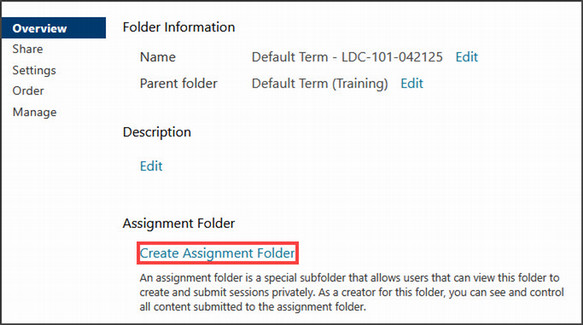
- Create an assignment folder in Panopto. Without the assignment folder, students will not be able to record or upload a video to Panopto.
- Click on Panopto in the course navigation menu - if Panopto is not visible, view this guide for instructions on how to make Panopto visible.
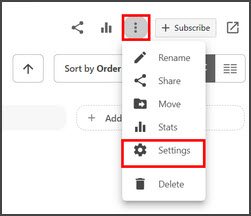
- Click on the options menu in the upper right-hand corner and select Settings.
-
- Select Create Assignment Folder.
-
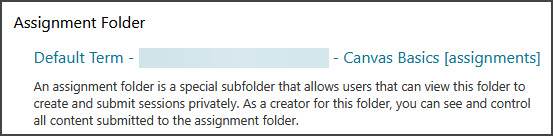
- You will now see the Assignment Folder.
- Create an assignment in Canvas like you would normally do. If you need help creating an assignment in Canvas, view this Canvas guide.
- In the Assignment settings, set Submission Type to Online and select Text Entry so that students have access to the Panopto embed tool.
- Click Save or Save & Publish if you are ready for students to view it.
- You can also create a Panopto video assignment using a discussion and students will have access to the Panopto embed tool in the toolbar.
You can adapt the following instructions for your students on how to submit a Panopto video assignment:
- Click Start Assignment.
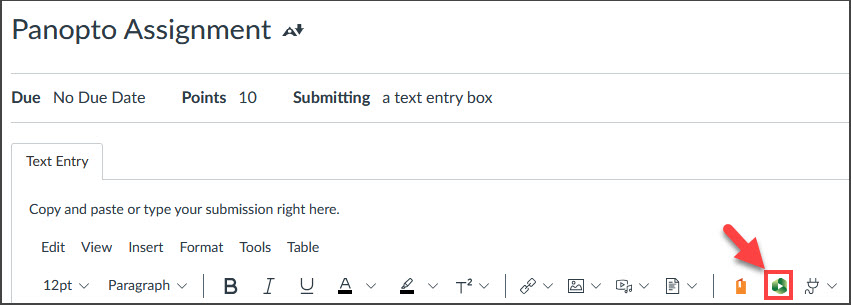
- Choose the Panopto video icon in the toolbar.
- In the drop-down box, continue expanding folders until you find your course Assignments folder.
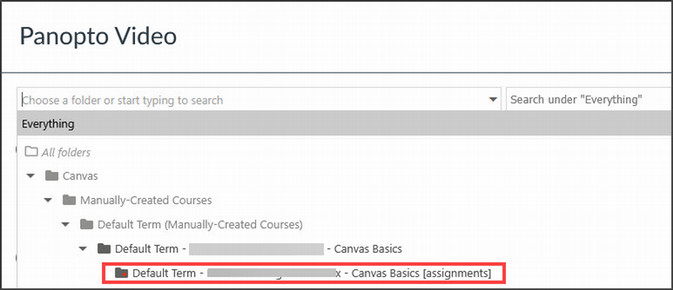
- Select the assignments folder.
- You can then choose an existing video, upload a video, or record a video. After you have chosen, uploaded, or recorded a video, select Insert.
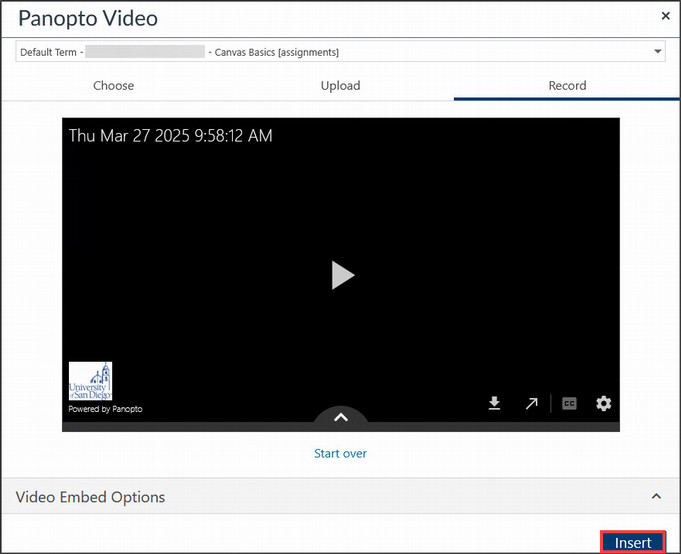
- You will then return to the Canvas assignment. Add anything else needed for the assignment and then select Submit Assignment.