

What is LockDown Browser?
LockDown Browser is a specialized browser that locks down the testing environment and restricts students from accessing other websites, applications, and system functions while the exam is active.
Enabling LockDown Browser in Your Course
You first need to make LockDown Browser visible in your course navigation menu by doing the following:
- Click on Settings in course navigation menu
- Select the Navigation tab
- Find LockDown Browser and select Enable
- Click Save

Activating LockDown Browser for Quiz/Exam
After you have enabled LockDown Browser in your course navigation menu, you can activate it for specific quizzes and exams. To do this, click on LockDown Browser in your course navigation menu and then do the following:
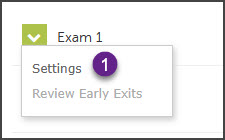
- Click on the down caret next to the quiz or exam and select Settings.
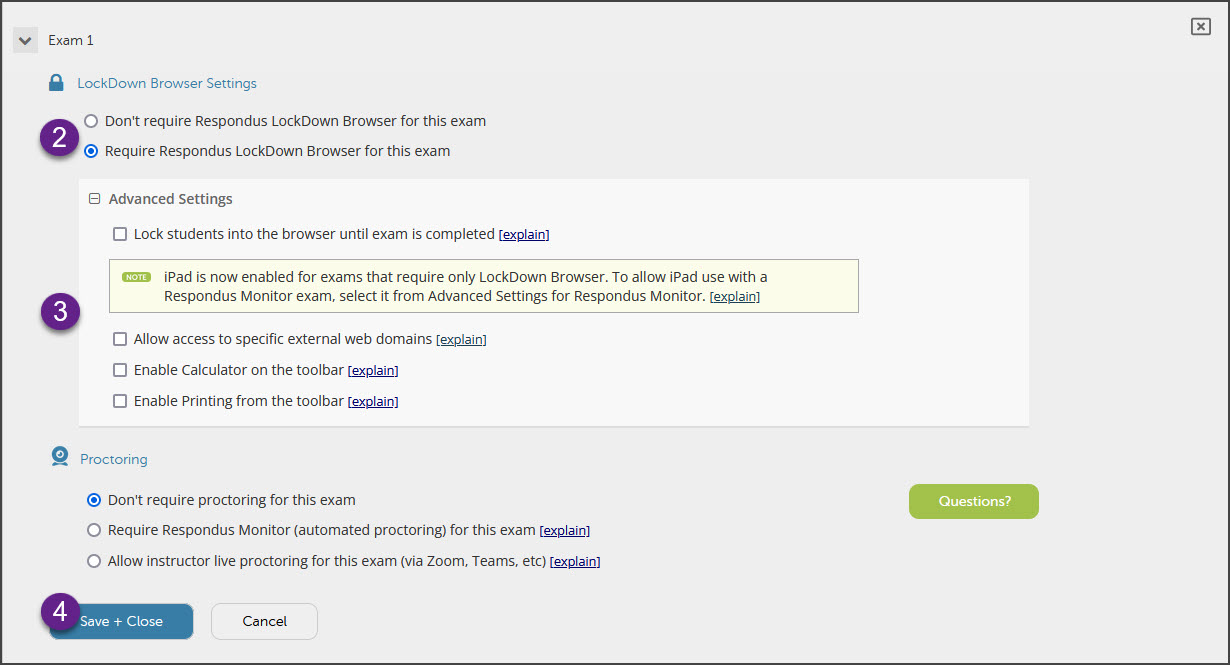
- Select the "Require Respondus LockDown Browser for this exam" option.
- Review the Advanced Settings and choose any that you would like. You could also choose to add Proctoring if desired.
- Click Save & Close.
Additional Resources
View the following guides for assistance and tips with using Respondus LockDown Browser and Monitor:
- Instructor Quick Start Guide
- Student Quick Start Guide - you can provide this guide to students
For additional information on using LockDown Browser, or if you are interested in using Respondus Monitor for proctoring, view this Support webpage.