

View below for some frequently asked questions about Canvas. This page will be continuously updated.
Assignments
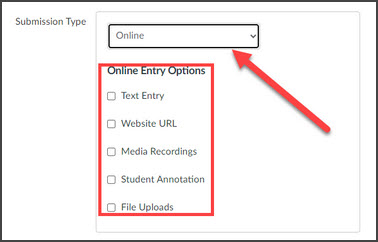
If the Start Assignment button is missing from an assignment in the Student View, this indicates that the assignment is set as a No Submission assignment.
To update the settings, edit the assignment, and update the submission type to Online and select the appropriate Online Entry Options.
You can update assignment due dates and availability dates all on one page, rather than going into each assignment individually. To do this go to Assignments in the course navigation menu. Click the Options icon (3 vertical dots) and then select Edit Assignment Dates. For more details view How do I bulk update due dates and availability dates?
Canvas Tools
You can create an announcement using the Announcements option in the Course Navigation menu. Once on the Announcements page, select + Announcement, enter in the information you would like to send out, and then click Publish. For more details and a video tutorial, view How do I add an announcement in a course?
You can choose to display announcements on your course home page by going to Settings in the course navigation menu, scrolling down to the bottom, clicking More Options, and then selecting the check box to display announcements on home page.
Video Tutorial: Displaying recent announcements on course home page
By default, students receive an email notification when an instructor posts an announcement.
All Canvas users can modify which notifications they receive so it is possible that students will turn off their notifications for announcements. For more details on updating notifications, view How do I manage my Canvas notification settings?
Video Tutorial: Announcement Notifications
There isn't a way to receive a direct confirmation that an announcement was delivered. However, you can opt to be notified via email when you create an announcement. If you receive notification of the announcement, students should have received the notification of the announcement, as long as they have not turned off their notifications.
To update this setting, go to your Account in the global navigation menu and then to Notifications. Scroll down to Announcements Created By Me and update the notification settings to your preference (notify immediately, daily summary, weekly summary).
Video Tutorial: Announcement NotificationsThe easiest way to upload documents to a course is to add them to the modules page so they can then be organized for student viewing. For more details view How do I add course content as module items?
If you want to add a document to an assignment, announcement, page, etc… you can use the Rich Content Editor. For more details view How do I upload a document in the Rich Content Editor?
Video Tutorial: Uploading documents
The drag and drop option is only available in modules that do not contain content or newly created modules. Once you have added content to a module and navigated away from the page, the drag and drop option will disappear.
To continue adding items to a module, view How do I add course content as module items?
Video Tutorial: Uploading documents
You can take attendance in Canvas using the Roll Call app. Roll Call is an integration with Canvas. To use it, you will need to make Attendance active in the course navigation menu. Using the attendance tool will create a column in the gradebook, which you can choose to count towards the student grade, exempt from the final grade, or change it to ungraded. Students can view their attendance information via the gradebook, unless you hide it. Students will not have access to the Attendance navigation link. For more details, view How do I use the Roll Call attendance tool in a course?
Video Tutorial: Using the Attendance Tool
You can use View as Student to view the course from a student’s perspective. In addition to viewing course content you can also submit assignments as a test student. To use Student View, click on the View as Student button in the upper right corner of the course. To leave student view, click the Leave Student View button in the lower right. For more details, view How do I view a course as a test student using Student View?
Course Navigation
Modules is the default home page in Canvas. If you do not want to use modules as your home page, there are a few different options.
From the home page, click on Choose Home Page in the right-hand menu. You can choose the following options for your home page:
- Course Activity Stream
- Pages Front Page
- Course Modules
- Syllabus
- Assignments List
If you would like to use a home page template in your course, USD currently has a few home page templates that you can import into your course from Canvas Commons. To import the template, go to Commons, select the template you would like to use, click on Import/Download and choose the course you want to import it into.
Once the page is within your course, to get the page to show up as your home page, you need to take two additional steps:
- Designate the page as your front page
- From your course home page, select Choose Home Page in right-hand menu and select Pages Front Page.
Course & Content Availability
If you do not see a course on your dashboard, go to Courses in the Global Navigation menu and click on All Courses. You can manage which courses display on your dashboard by selecting favorites. To favorite a course, click on the start button next to the course. A filled in star indicates it is a favorite. For more details, view How do I customize my course list as an instructor?
Video Tutorial: Canvas dashboard
Faculty can do this on their own without submitting a ticket to LDC Support. View the job aid for detailed instructions. This should be completed prior to adding content to the courses. If you need assistance, you can contact us at LDCsupport@sandiego.edu.
The most common reason that students cannot see content is that the content or module is unpublished.Go to Modules and ensure that all modules and content that you would like students to see has a green check mark next to it.
- For more details view How do I publish or unpublish a module as an instructor?
- Video Tutorial: Publishing Content