
The University of San Diego recommends using Google Drive Storage and is available for active students, employees, and alumni.
USD policy 2.5.1 prohibits storing personal files such as videos, photos, and other documents on USD systems in order to assure the integrity of our systems and minimize costs. Personal files are defined as any photos, videos, or documents not used solely for academic, administrative, or authorized university purposes.
ITS provides resources to help you in deleting such files from your USD account and, if needed, in helping you transfer them to other sources such as iCloud, personal Dropbox, personal Google account, or local computer/phone.
G Drive is:
- Free
- Securely store and backup your files
- Accessible anywhere you have Internet
- Continuously backed up on Google's cloud
G Drive can be used as a web version or a desktop version.
- Web Version
- Desktop Version
- How to designate a Co-Manager
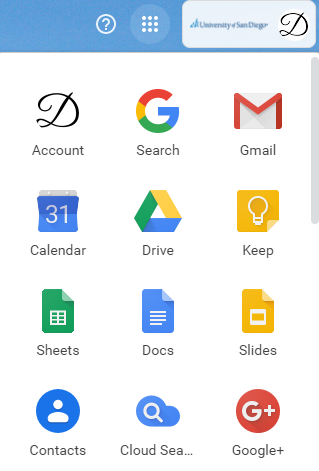
Open a new browser window and type drive.google.com and sign on using your USD One credentials. Alternately, while in your gmail account or any other Google app, you can go to the nine dots in the upper right hand corner and select Drive from the list.
To make a shared drive for your department:
- Click on Shared drives.
- Click on New, at the top left of the page.
- Enter the name of your department's shared drive.
- Click Create.
- At the top of the screen, click on Add members.
- In the box that opens, type each person's email address and what type of privileges you want them to have. We suggest having 2 people designated as "Managers" (Managers can manage content, members and setting) and designate all others as "Contributors" (which can add and edit files but not delete them).
- Enter a message or check and click SEND.
- Repeat steps 5-7 for each member.
Next, it is recommended that you make folders for each person in the department and other folders, as needed, for sharing documents.
To make a folder:
- Click on your Department Shared Drive.
- Click on New -> Folder and give it a name such as meeting notes, general documents, assignments, etc.
- Click on the folder and give it a name.
- Any files that you load into this folder will now be accessible to everyone in the department.
Remember, anything in a shared drive can be seen by all the members.