
Protect your information with MFA. Here’s the Why, When, and How.
The rise in cyber security attacks (e.g., phishing, ransomware) has created a need to further protect USD resources. An ID and a password are no longer enough to battle these crimes. By using modern Multi Factor Authentication technology (Duo), we can better determine that you are who you say you are, and are not a hacker with a stolen password. This technology has become the standard in most companies/universities and is now required by cyber security insurance providers.
Attention: Beware of DUO Authentication Phone Scam
Please be advised of the recent security issue below affecting USD campus and DUO.
Malicious bad actors were able to obtain several USDOne account credentials through targeted phishing emails. Then, they attempted to login to these accounts by performing an automated DUO phone call scam. Unfortunately, some of the targeted people approved those access requests without questioning why they were receiving the call. As a result, those accounts were breached and compromised.
We ask that you carefully read and/or listen to all DUO prompts and only approve them if you were the one initiating them. If you do NOT initiate a DUO access request or do not recognize the reason why you are receiving a DUO push notification or phone call, then you should not accept it.
To protect yourself from falling victim to this scam or similar ones, please follow the important precautions listed below.
Stay Vigilant with DUO Calls and Push Notifications
Always verify the legitimacy of all DUO phone calls or push notifications to your USDOne account before accepting them. If you encounter unexpected or suspicious communication unrelated to your actions, don't blindly accept calls or security prompts. Further damage can be done and your actions will put the University and yourself at risk.
Do Not Share Your Personal Information
Never provide your personal USDOne credentials or verification codes to anyone in person or over a call or text. ITS will never ask for your account password. If anyone is requesting this information from you, do not give it to them.
Report Suspicious Events and Activities
If you sense you are being targeted by a phishing scam, Duo phone call scam, or any of the actions above, report them to our ITS Help Desk immediately at help@sandiego.edu.
Your security is our highest priority. We investigate all scams to prevent them from occurring again. Stay vigilant and take precautions to protect yourself from potential cyber threats that can happen at any time.
How Does Multi-Factor Authentication Work?
Once you have enrolled in MFA, when you attempt to access any of the university’s critical applications, you will be prompted to enter your username and password as usual (the first “factor"). You will then be taken to the Duo’s MFA screen where you will select the device of your choice and the preferred method of verification — push notification, a phone call, or a passcode — you will use to verify that it’s you (the second “factor” or multi-factor).
Who and What is Covered by MFA?
All active USD employees and students are required to use MFA (DUO).
Welcome to the University of San Diego! This guide will walk you through the two-part process of claiming your new USDOne account and then securing it with Duo Multi-Factor Authentication (MFA).
Part 1: Claim Your USDOne Account
-
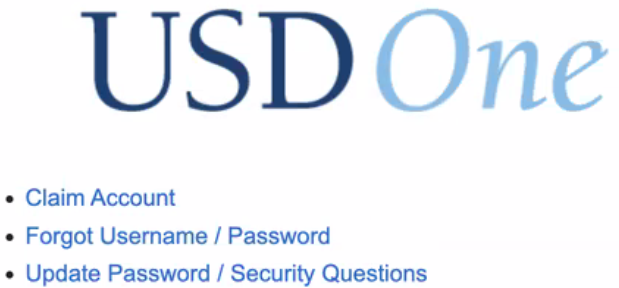
Begin the Process Navigate to usdone.sandiego.edu/USDOne. Click Claim Account
-
Accept the Policy Read and accept the USD Acceptable Use Policy.
-
Select Your Role Choose whether you are a Student or an Employee.
-
Verify Your Identity
-
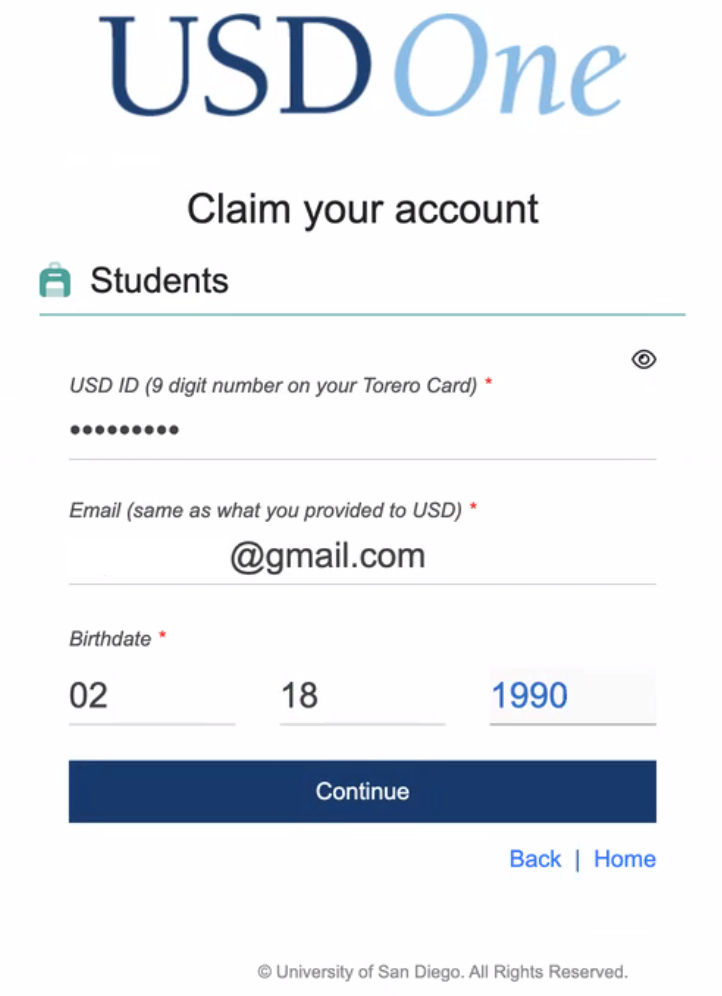
? For Students: Enter your 9-digit USD ID number, the personal email address you provided during admission, and your date of birth.
-
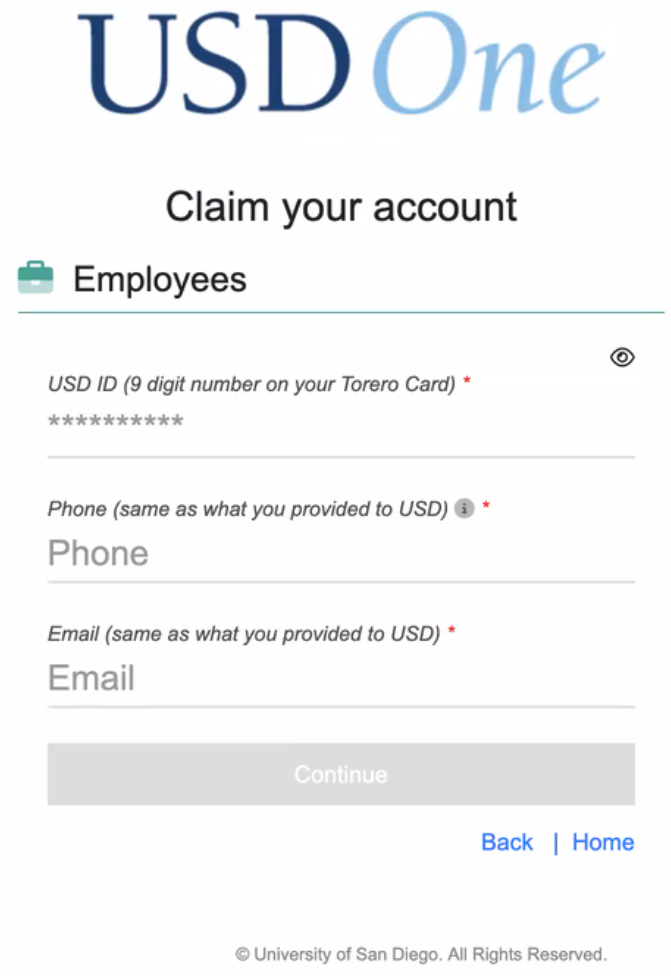
? For Employees: Enter your 9-digit USD ID number, the phone number you provided to HR, and your personal email address.
-
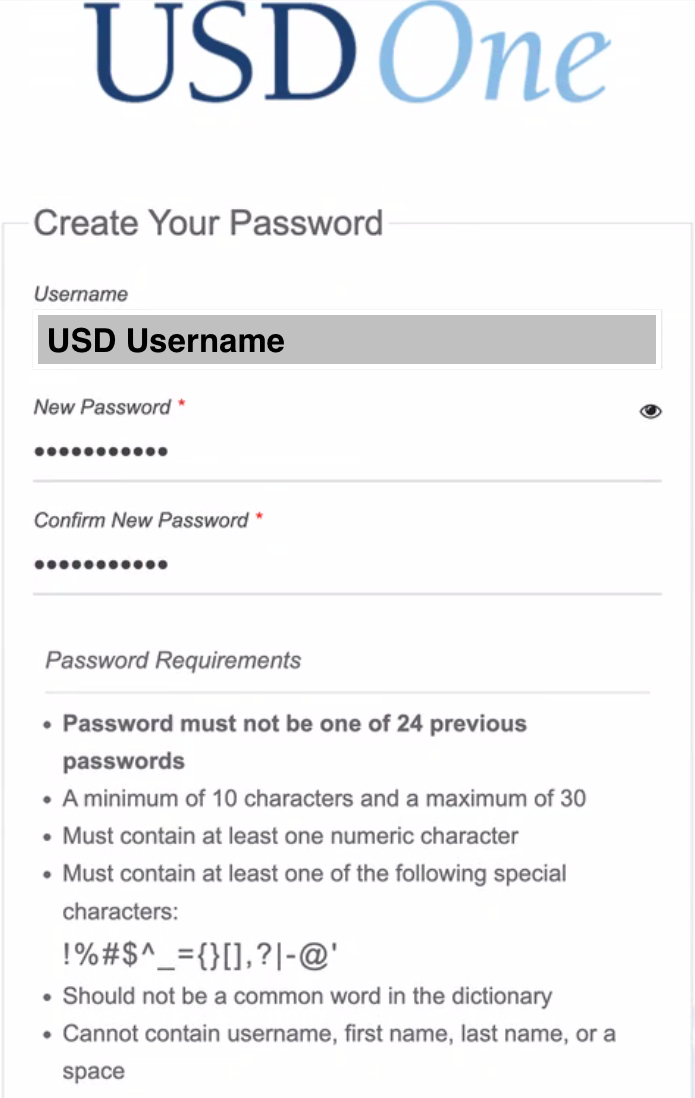
Set Your Password Create a new, strong password for your account as prompted.
-
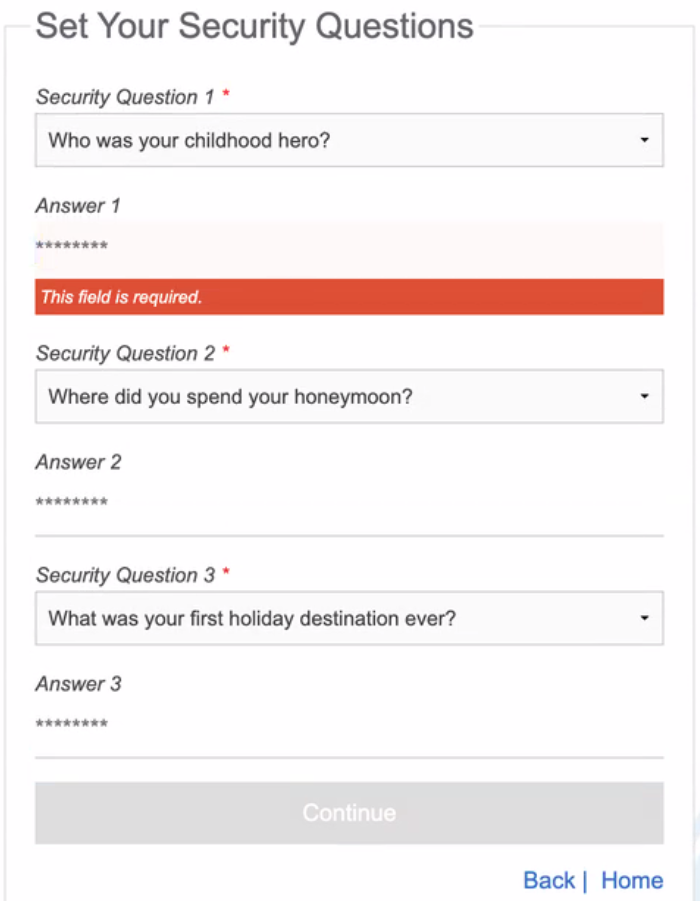
Set Security Questions Choose and answer the security questions. These will be used for future password recovery.
-
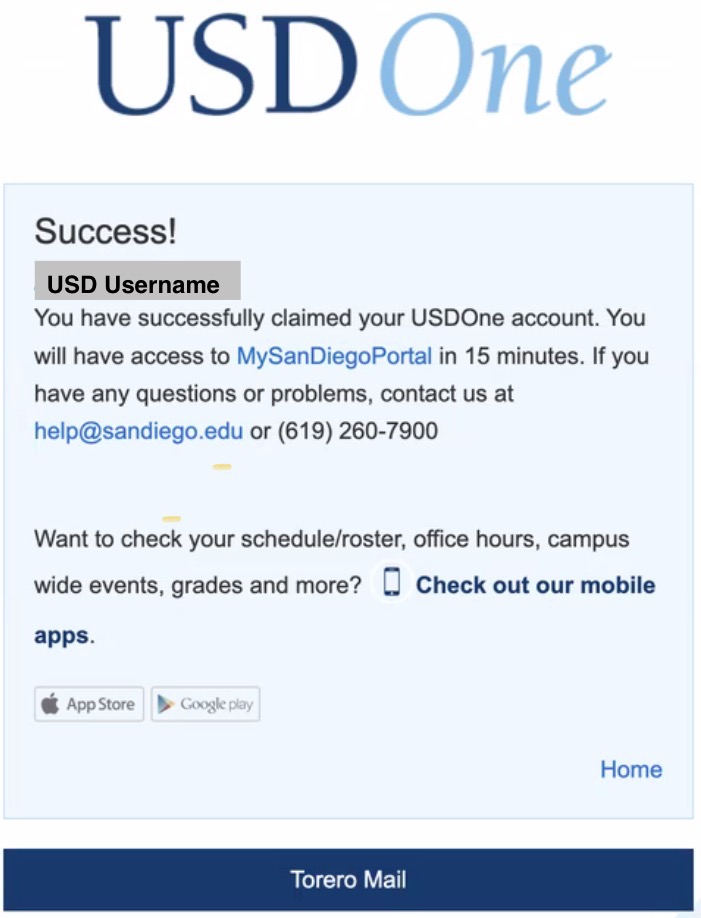
Confirmation Once finished, you will see a confirmation screen stating that your USDOne account has been successfully claimed.
Part 2: Set Up Duo Multi-Factor Authentication (MFA)
Your Duo MFA setup will begin automatically the first time you log in to a protected USD service.
-
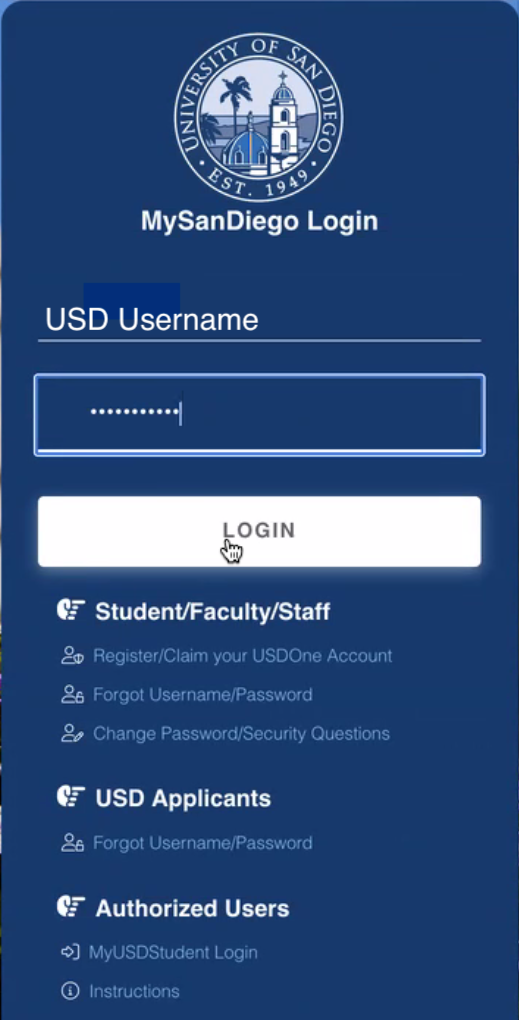
Log In to Your Email Go to toreromail.sandiego.edu to log into your university email for the first time. Enter your new USDOne username and the password you just created.
-
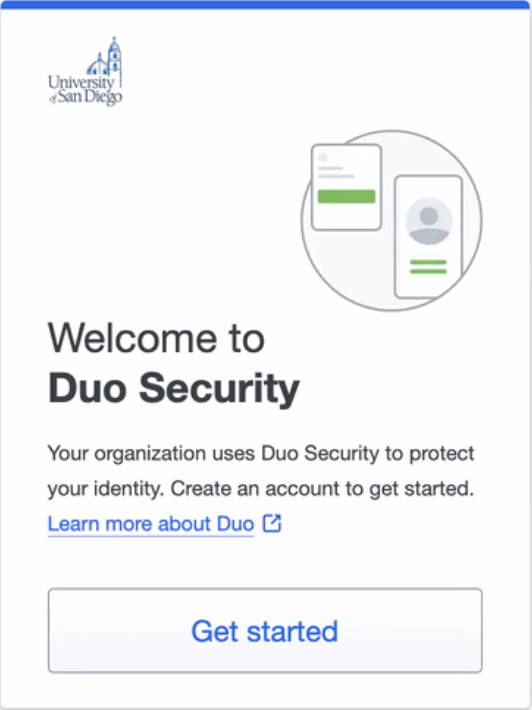
Start Duo Setup You will be automatically redirected to the Duo security setup screen. Click Get started.
-
Select Your Device Type Choose the type of device you want to add. We strongly recommend selecting Duo Mobile for the best experience with a smartphone.
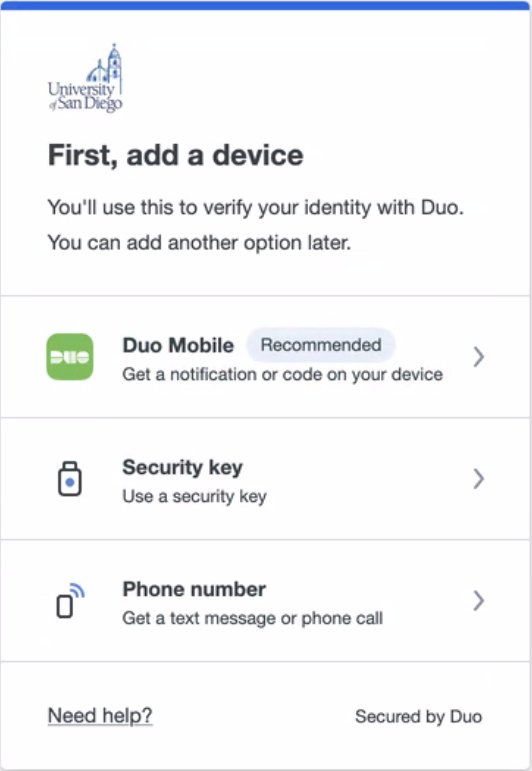
-
Enter Your Phone Number Type in the phone number for your smartphone and click Continue.
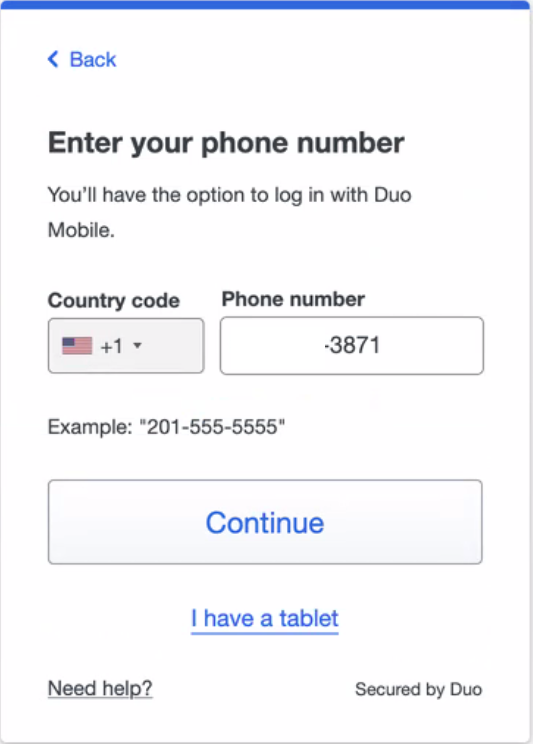
-
Verify Ownership
-
Confirm that the phone number is correct.
-
Choose to receive a passcode via text message.
-
Enter the six-digit code you receive on your phone to verify.
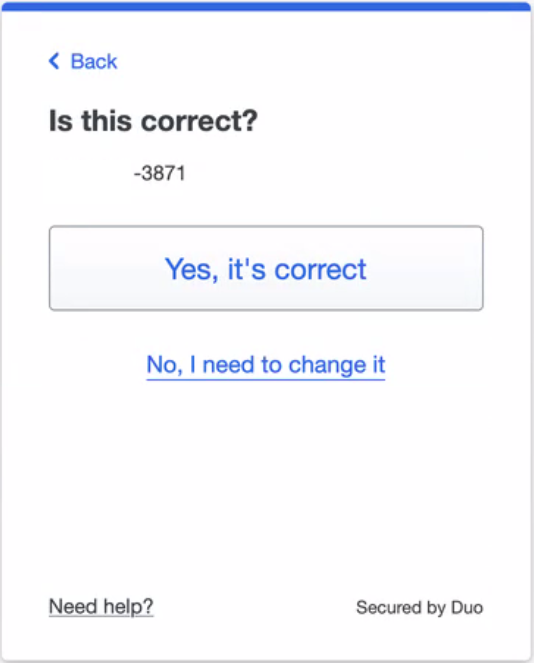
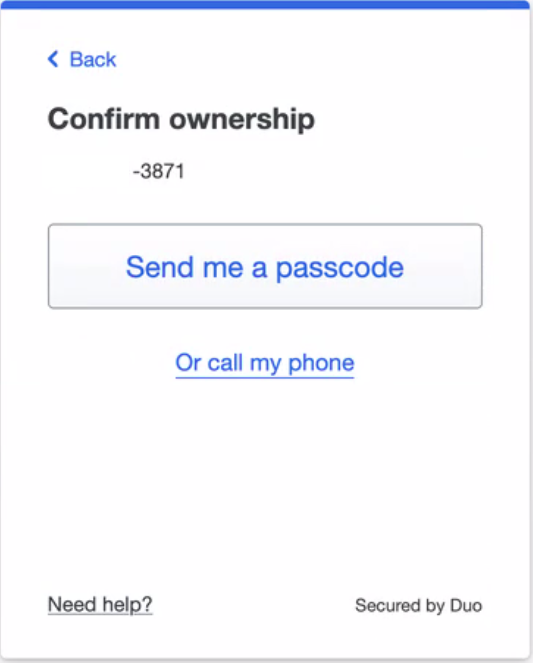
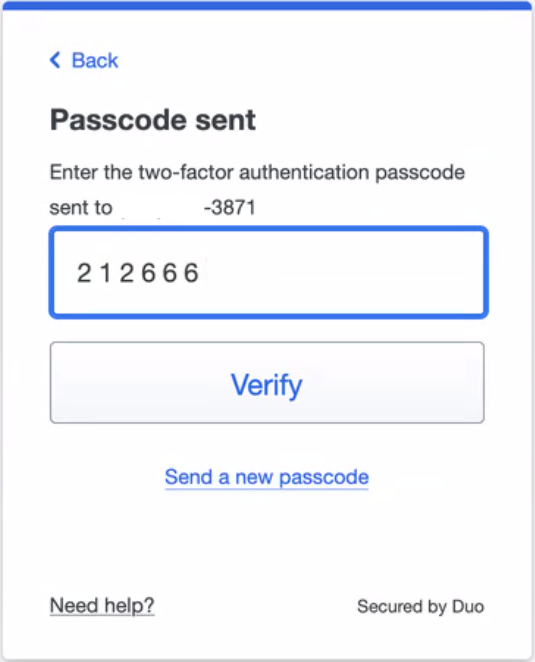
-
Install the Duo Mobile App You will be prompted to download the free Duo Mobile app from your phone's app store (Apple App Store or Google Play Store). If you already have it, just click Next.
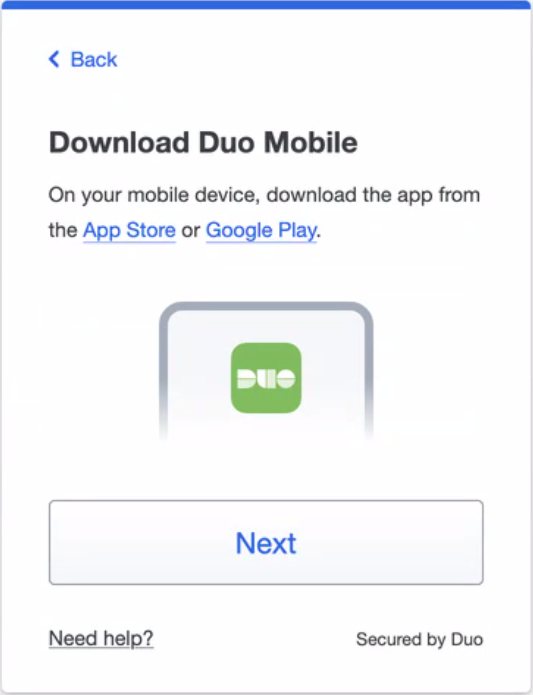
-
Activate Your Device by Scanning the QR Code Open the Duo Mobile app on your phone. Tap the button to add an account, then point your phone's camera at the QR code displayed on your computer screen. A green checkmark will appear over the code to confirm a successful scan.
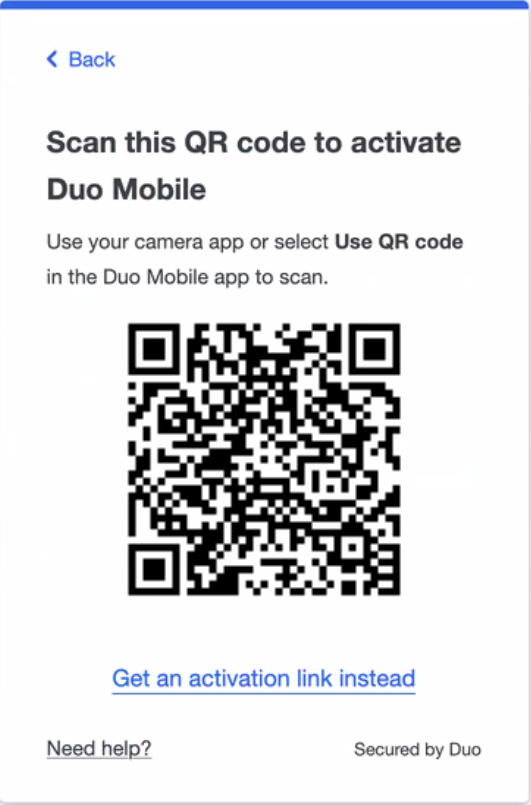
-
Complete the Setup Your device is now registered! Click Continue. For now, you can skip adding another device. Click Log in with Duo to finish the process and access your email.
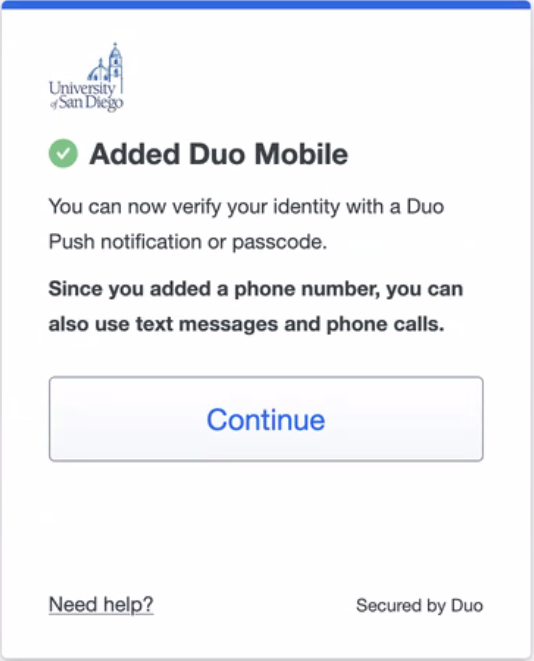
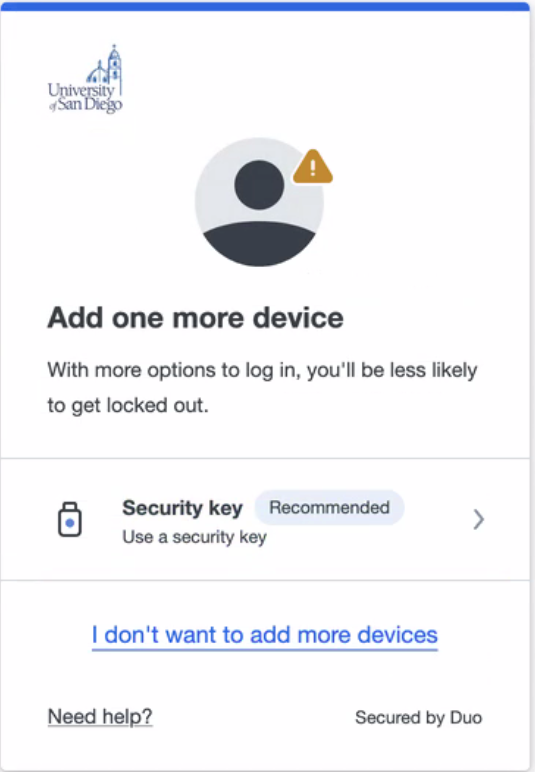
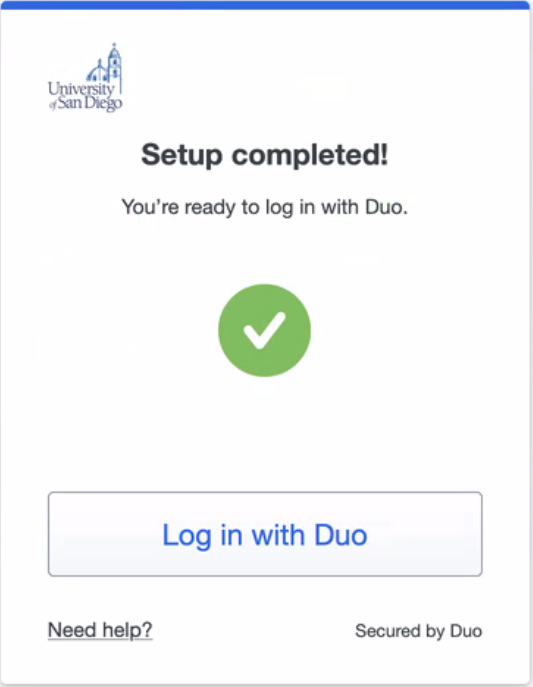
Congratulations! Your account is now claimed and fully secured with Duo MFA.
Part 1: Accessing the Device Management Portal
-
Navigate to https://my.sandiego.edu.
-
Log in with your USDOne credentials.
-
On the Duo authentication screen, click Other Options.
-
Click Manage Devices.
-
You will be prompted to verify your identity. Choose an authentication method you currently have access to (e.g., a phone call or a text message to your registered number).
After you successfully authenticate, you will see your list of registered devices.
Part 2: Choosing an Action
To Add a New Device:
-
Click the Add a device button and follow the on-screen prompts to set up your new authentication method (e.g., Duo Mobile on a tablet, a security key, etc.).
To Reactivate Duo on a New Phone (with the same phone number):
If you have a new phone but are keeping the same number, you need to reactivate the Duo Mobile app.
-
Click the I have a new phone button.
-
Click on the Get started button.
-
Confirm ownership of your phone number by selecting either the text message or phone call option.
-
Enter the verification code you receive.
-
You'll be prompted to download the Duo Mobile app on your new phone. If you already have it, just click Next.
-
Open the Duo Mobile app on your phone and tap the option to add an account. Use your phone's camera to scan the QR code displayed on your computer screen. A green checkmark will appear over the QR code, confirming the scan was successful.
That's it! Your new phone is now activated with Duo. ✅
Managing Your Duo Devices
Add a New Device to Your Account
Changing phones doesn't have to be a hassle. If you have a new device but you have the same phone number, you can easily reactivate Duo Mobile yourself.
? If your device is lost, damaged or it's unable to receive notifications for any reason, please contact the ITS Help Desk for assistance.
Part 1: Accessing the Device Management Portal
-
Navigate to https://my.sandiego.edu/.
-
Log in with your USDOne credentials.
-
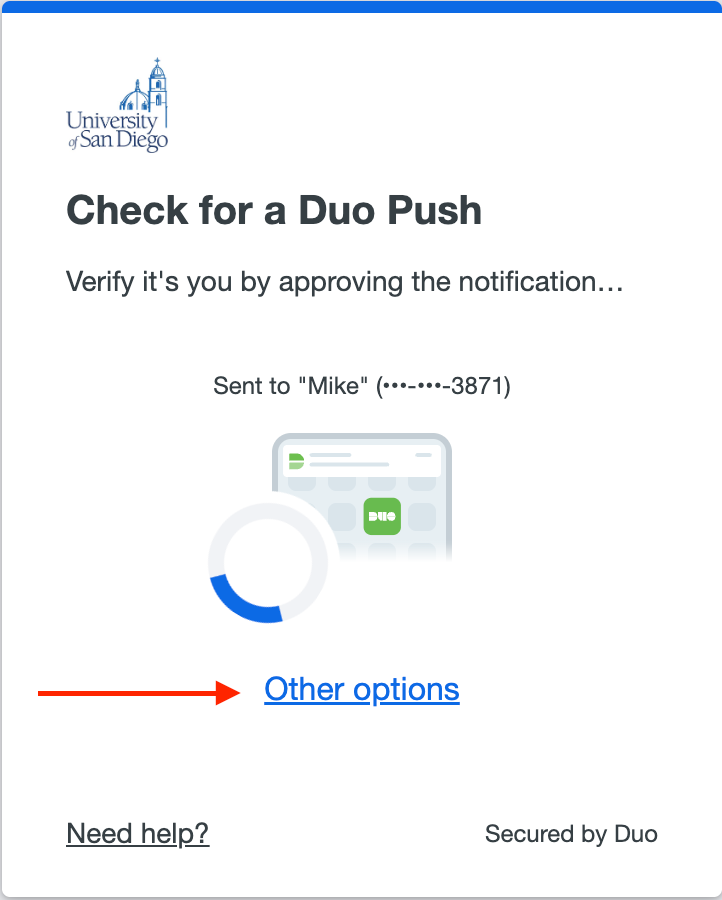
On the Duo authentication screen, click Other Options.
-
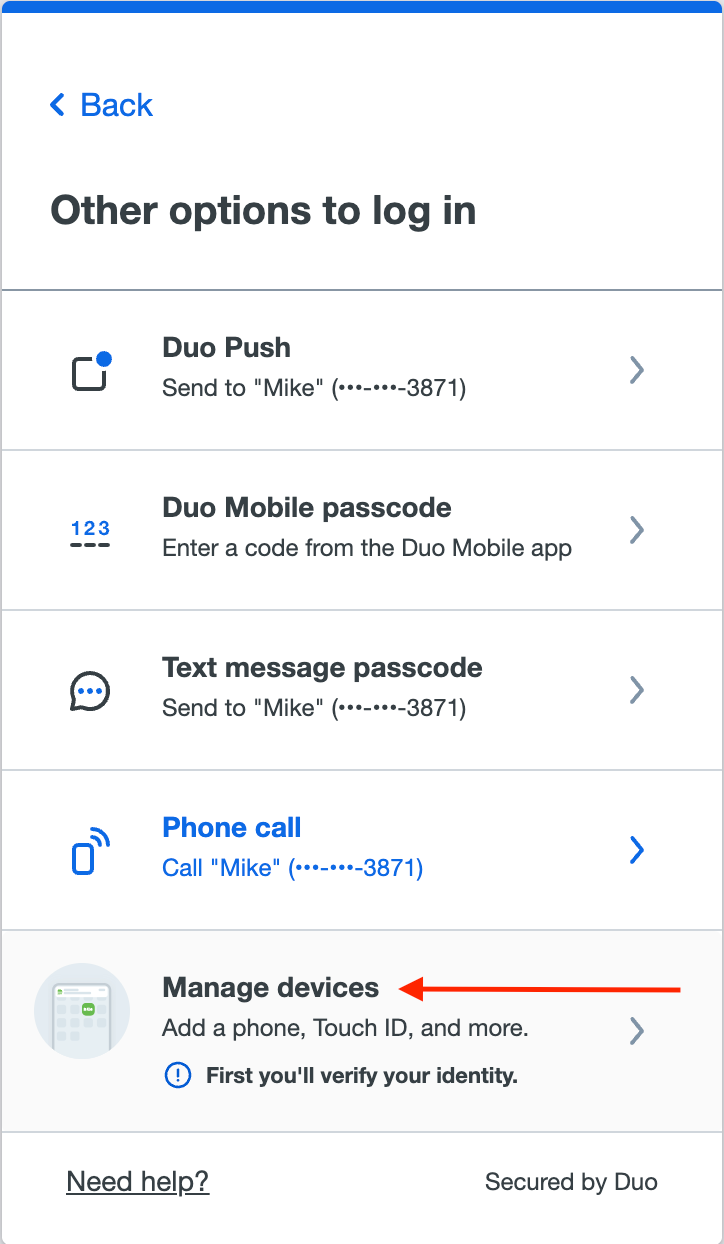
Click Manage Devices.
-
You'll need to verify your identity. Choose an authentication method you have access to, like receiving a phone call or text message.
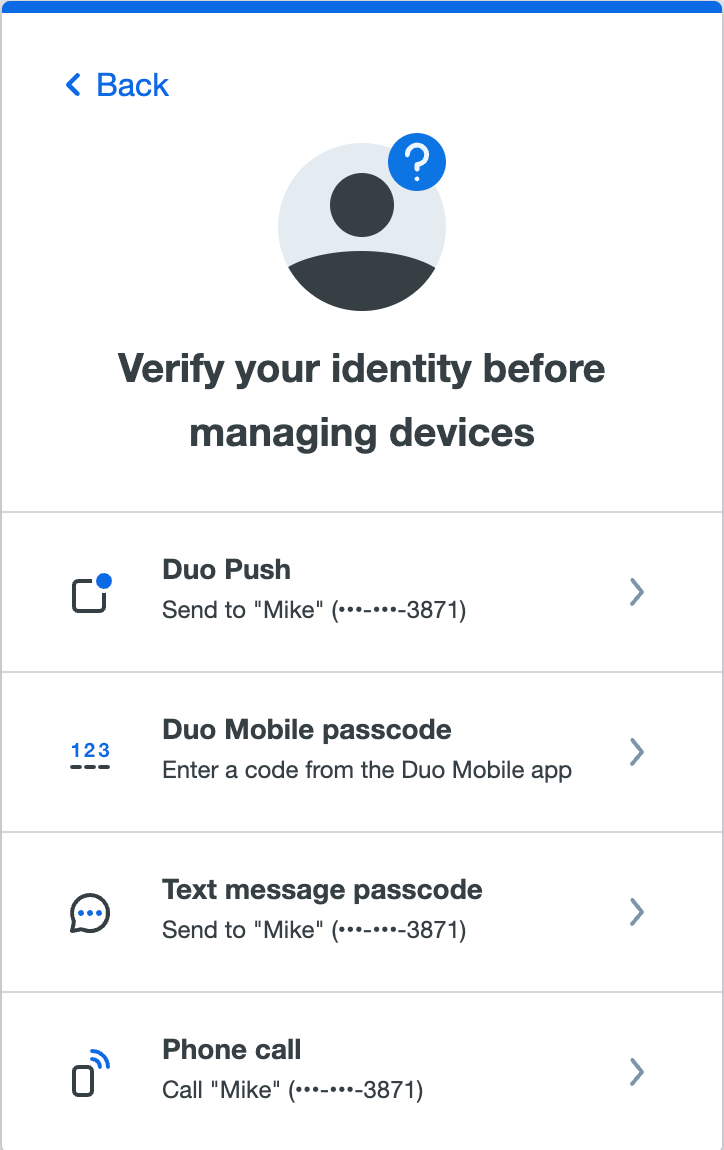
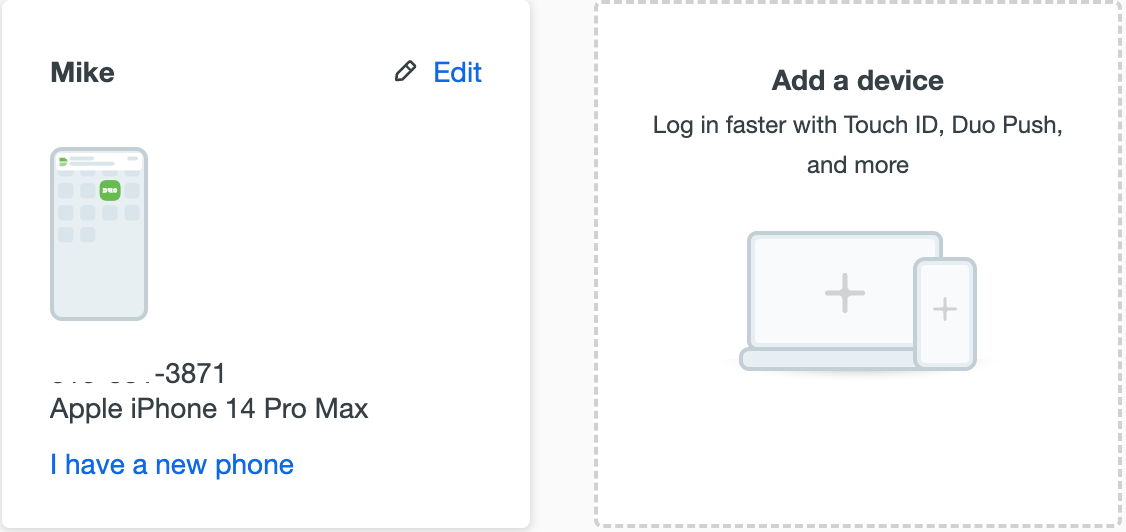
After you successfully authenticate, you will see your list of registered devices.
Part 2: Reactivate Duo on a New Phone (Same Number)
This is the most common action. Follow these steps after accessing the device management portal.
-
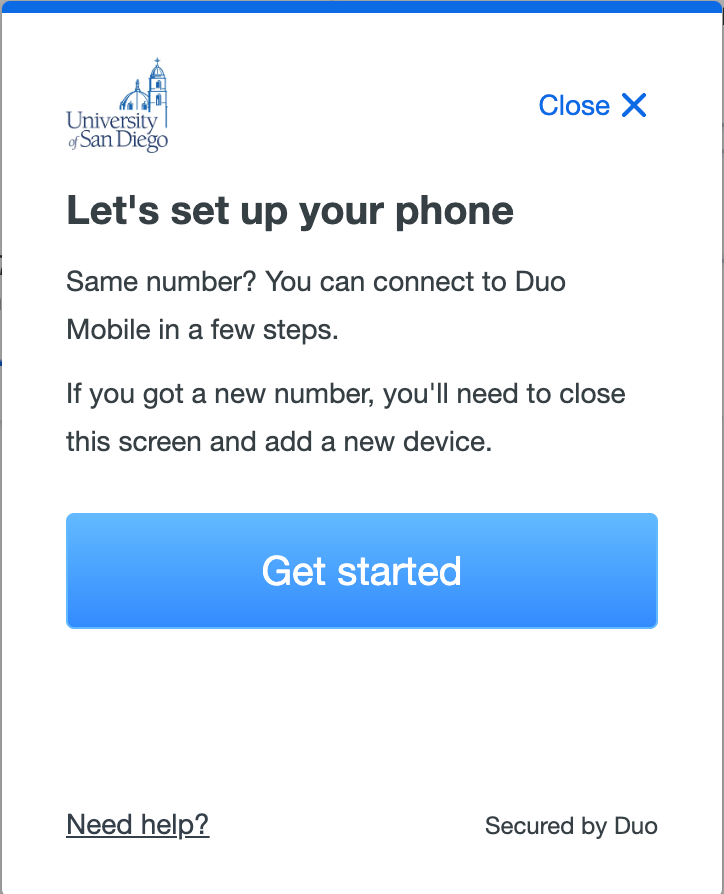
Click the I have a new phone button, then click Get Started.
-
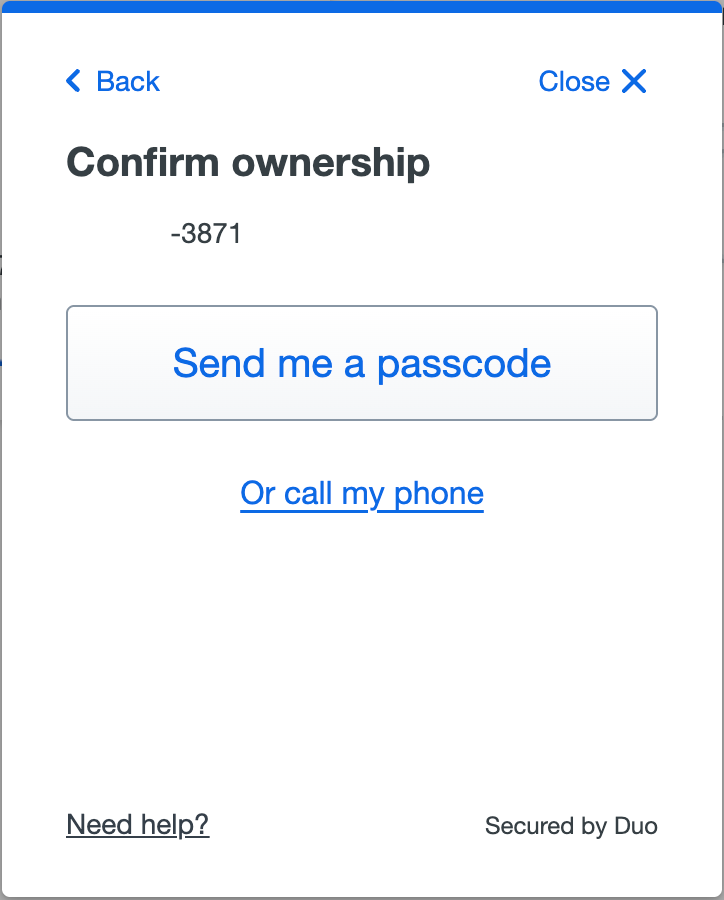
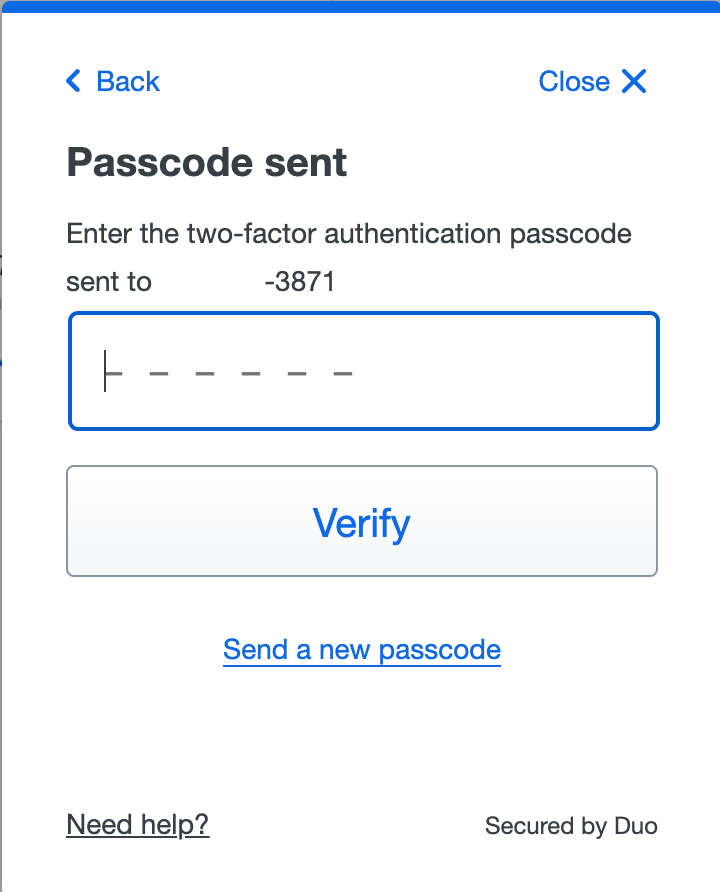
Confirm ownership of your phone number by selecting Send me a passcode or Or call my phone.
-
Enter the verification code you receive.
-
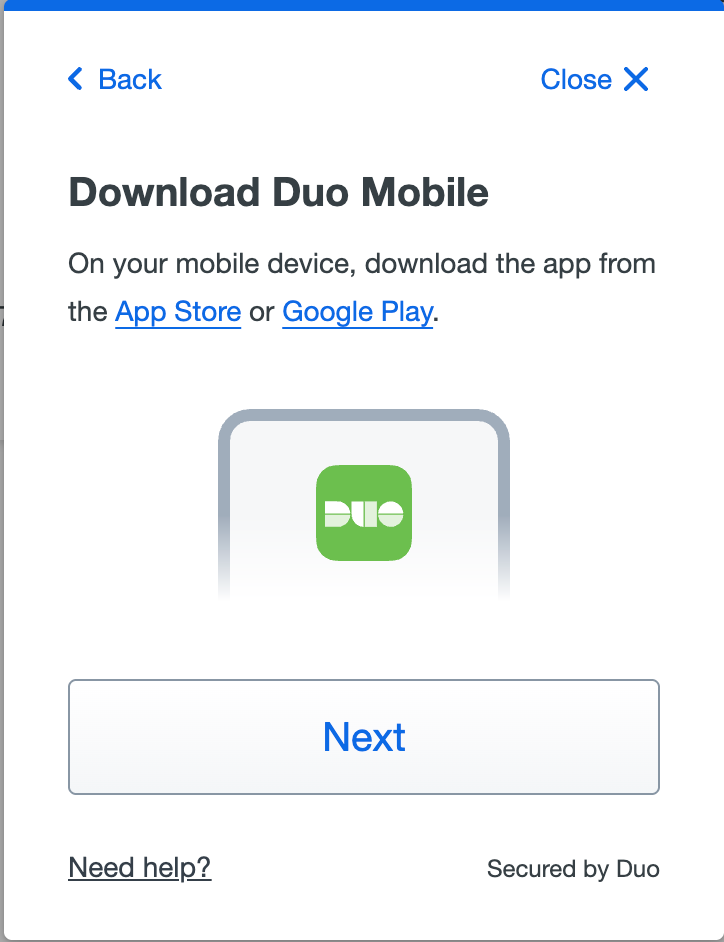
You'll be prompted to download the Duo Mobile app on your new phone. If you already have it, just click Next.
-
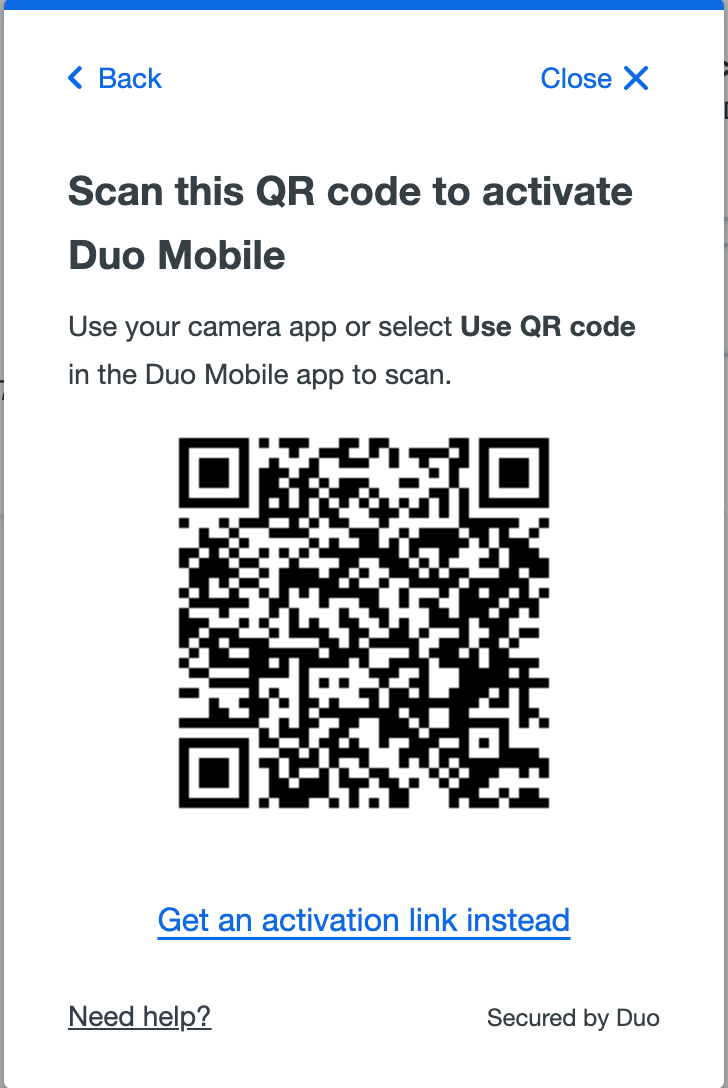
Open the Duo Mobile app on your phone and tap the option to add an account. Use your phone's camera to scan the QR code displayed on your computer screen. A green checkmark will appear over the QR code, confirming the scan was successful.
-
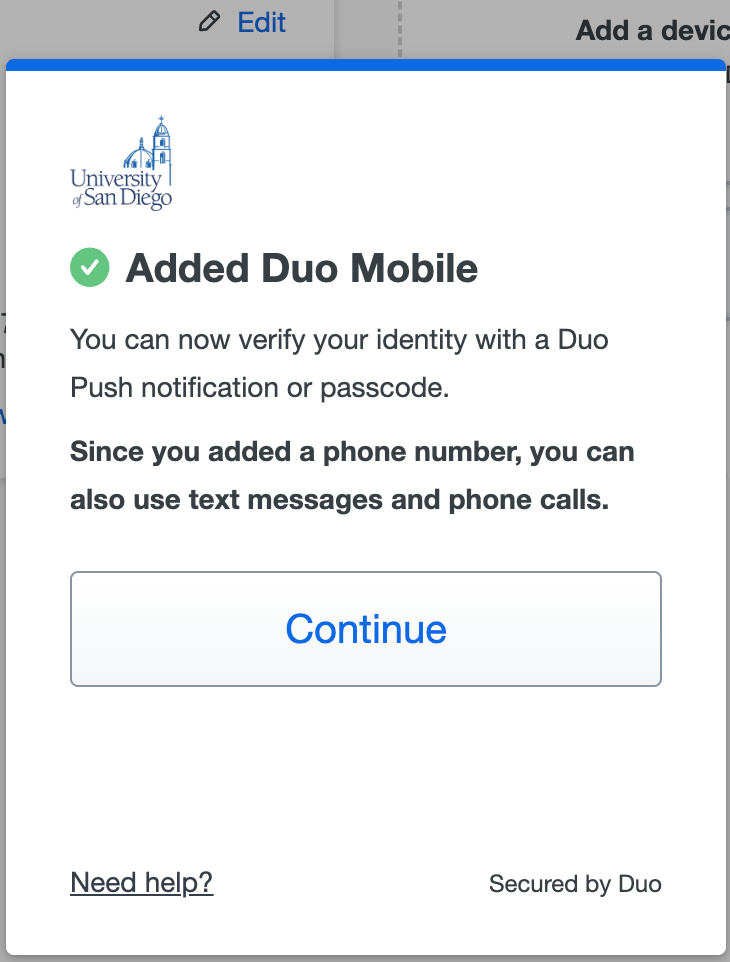
That's it! Your new phone is now activated with Duo. ✅
Multi-Factor Authentication (MFA), also known as two-factor authentication, is an extra layer of security that protects your personal data. It enhances the security of your password by requiring a second step to verify your identity.
The system is built on a simple principle: to gain access, you must provide two different types of credentials.
- Something You Know (e.g., your password)
- Something You Have (e.g., your smartphone or tablet)
Without both factors, access is denied.
A Real-World Example: Using an ATM
You already use MFA in your daily life. When you visit an ATM:
- You insert your debit card (something you have).
- You enter your PIN (something you know).
You need both your card and your PIN to access your account. MFA applies this same secure logic to your digital life.
How It Works at USD
At USD, MFA protects your account by using your phone or another registered device to confirm it's really you logging in. This security step is required when you access the USD network and critical applications, whether you are on or off campus. By requiring two factors, MFA makes it much harder for anyone else to access your information, even if they know your password.
Yes, you can still use Duo. The Duo system is designed to work perfectly even when your phone is offline. You have two main options in this situation.
Option 1: Use the Duo App's Offline Passcode Generator
The Duo Mobile app has a built-in feature that generates a six-digit login code without needing any internet or cellular connection. This works anywhere in the world, even if your phone is in airplane mode.
How to log in with an offline code:
-
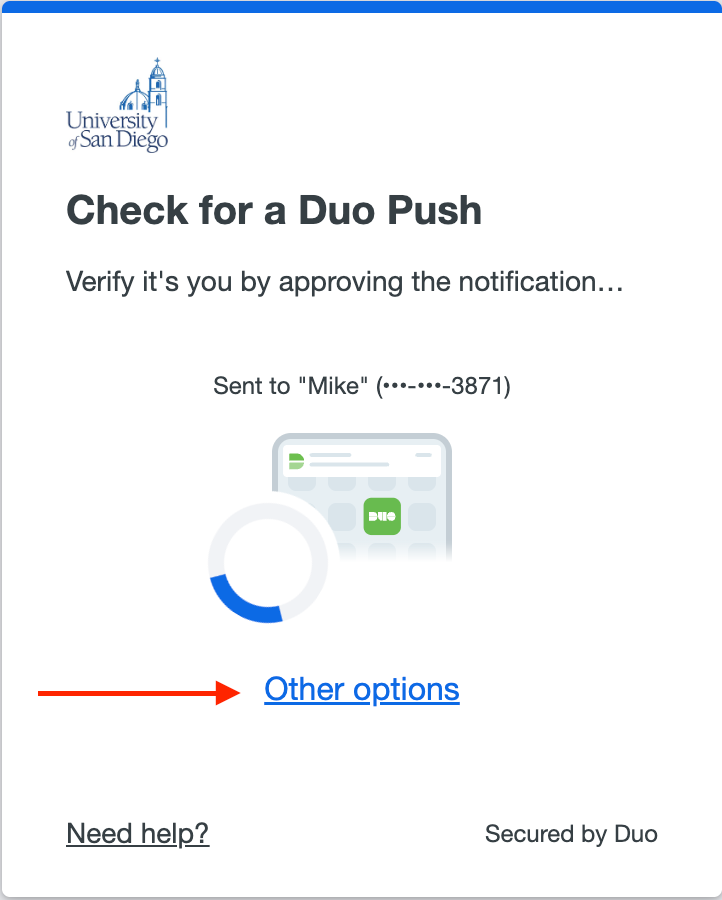
On your computer, get to the Duo authentication prompt.
-
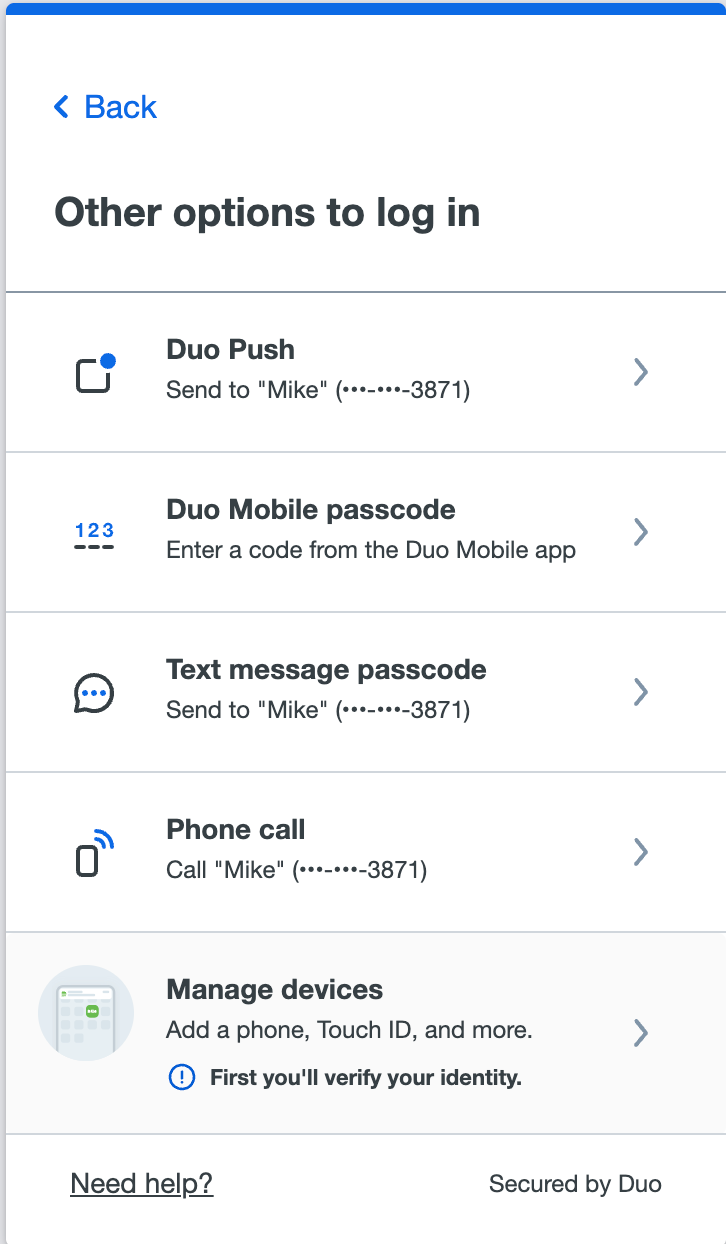
Click Other Options.
-
Select the Enter a Passcode option.
-
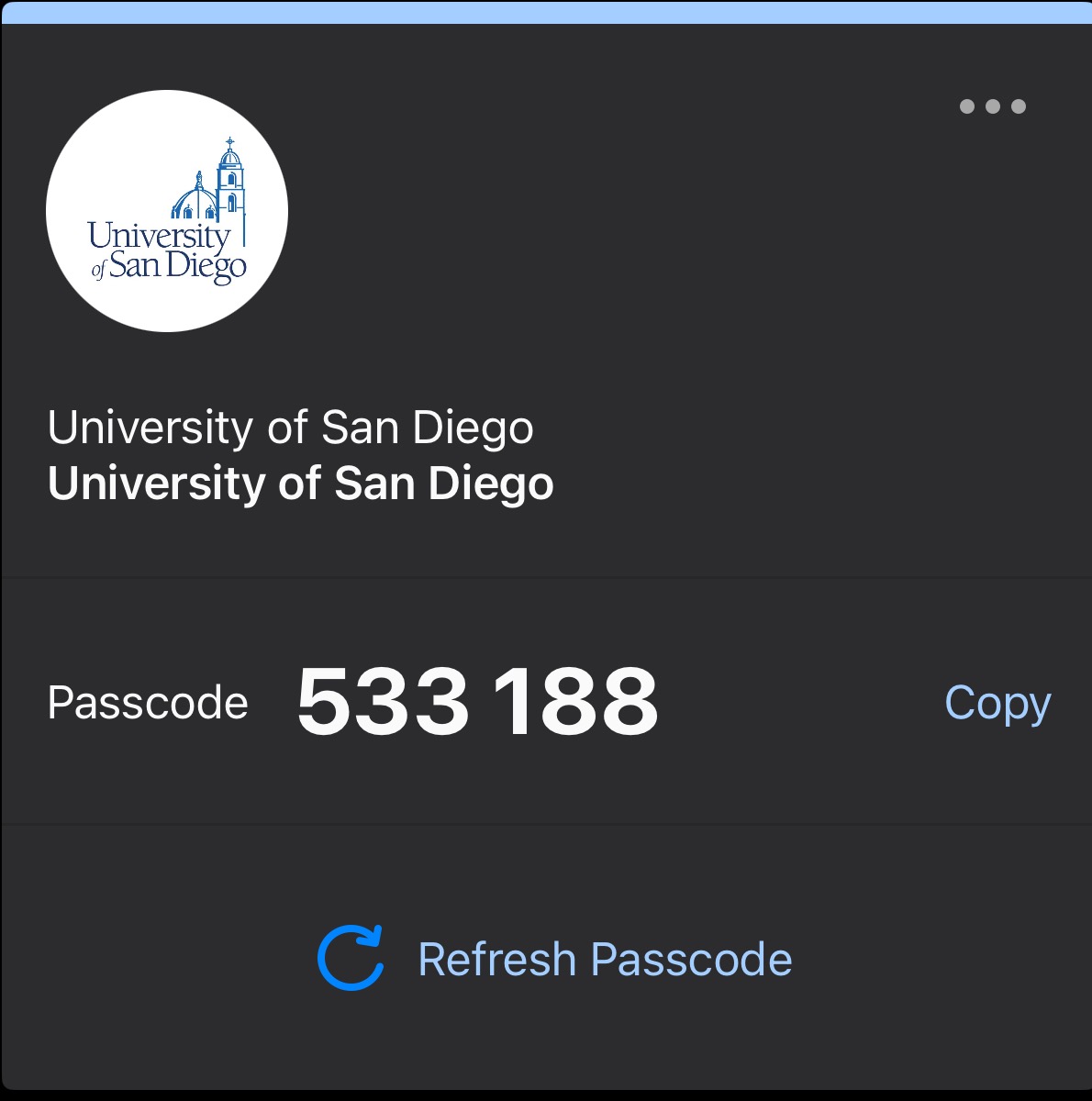
Open the Duo Mobile app on your phone.
-
Tap the entry for your account to reveal the current six-digit code.
-
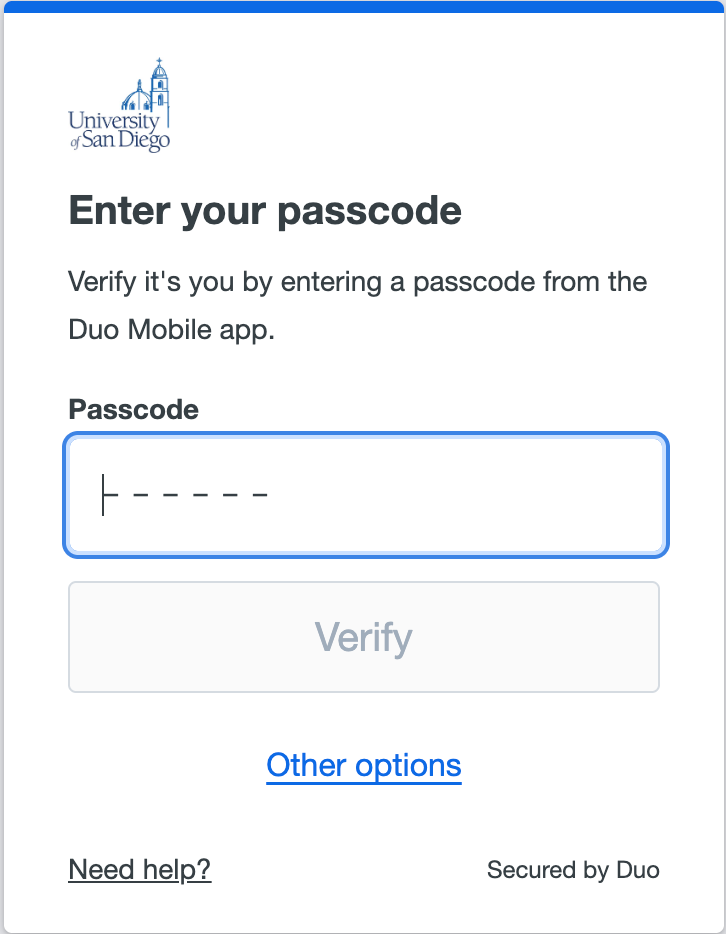
Type this code into the passcode field on your computer and click Log In.
Option 2: Use a Landline Phone
If you have previously registered a landline (like your office or home phone) as one of your devices, you can use it to authenticate.
At the Duo prompt, simply select the Phone Call option. The system will place an automated call to your registered landline to verify your identity.
In Summary:
While the one-tap Duo Push notification is the easiest method when your phone is online, the offline passcode is a powerful and reliable backup that ensures you can always access your account.
In today's digital world, a password alone is no longer enough to keep your information safe. MFA adds a crucial second layer of defense to protect your personal and university data from common threats.
The Problem: Passwords Are Vulnerable
Passwords have become increasingly easy for criminals to steal and use.
- They Can Be Stolen: Sophisticated hacking and phishing scams can trick you into revealing your password.
- They Can Be Guessed: Simple or common passwords can be easily guessed by automated software.
- They Are Often Reused: If you use the same password for multiple websites, a security breach at one company could expose your USD account.
The Risk: Scams Are Effective
Experience has shown that even cautious people can be fooled by malicious phishing emails. Annually, members of the USD community fall victim to these scams, which can lead to serious consequences like identity theft or stolen paychecks. We must have more than just a password standing between us and these threats.
The Solution: MFA Is Your Shield ?️
MFA ensures that even if someone steals your password, they cannot access your account.
Think of your account like a bank vault. Your password is the first key. However, access is only granted after a second key is used—a temporary code or approval from your physical device (like your phone).
This second factor is completely separate from your password, providing powerful, independent protection for your USDOne account and keeping your digital information safe.
Yes.
The use of Duo MFA is mandatory when logging into most University of San Diego (USD) systems to ensure the security of your account and university data.
This requirement applies to essential services including, but not limited to:
- MySanDiego Portal
- Canvas
- Salesforce
- Workday
- Torero Mail (Email)
- VPN (for remote network access)
- Secret Server
The initial registration process is quick and straightforward. You should plan for about 5 to 10 minutes to set up your first device.
This timeframe typically includes:
- Logging into the setup portal.
Downloading the Duo Mobile app to your smartphone or tablet - Following the on-screen prompts to link your device to your account.
To make the process as fast as possible, we recommend you have the following ready before you begin:
- Your smartphone or tablet.
- A computer.
- A stable internet connection for both devices.
There is no limit to the number of devices you can register with Duo MFA.
For the best experience, we strongly recommend that all users register at least two different devices.
Why Add a Backup Device?
Adding a second device ensures you can always access your USD account. If your primary device is lost, damaged, or has a dead battery, you can use your backup device to log in without interruption.
Recommended Setup:
- Primary Device: Your smartphone with the Duo Mobile app installed.
- Backup Device: Your office phone (landline), a tablet, or a home phone number.
No. While a smartphone provides the easiest experience, it is not your only option. Duo MFA is designed to be flexible and works with a variety of devices.
You can use any of the following to authenticate your identity:
-
⭐ Smartphone (Recommended): The Duo Mobile app allows for fast and secure one-tap "push" approvals.
-
Tablet: You can install the Duo Mobile app on a tablet connected to Wi-Fi.
-
Basic Cell Phone: Receive a verification code via text message or an automated phone call.
-
Landline: An automated phone call can be sent to your office or home phone to approve a login.
Why Is a Smartphone the Recommended Option?
We recommend using a smartphone because the Duo Mobile app is the quickest and most user-friendly method. Instead of waiting for a call or typing in a code, you simply receive a notification on your phone and tap "Approve" to log in securely.
Forgetting your device doesn't have to mean you're locked out. This is exactly why we recommend registering more than one device with Duo.
If You Have a Backup Device Registered
If you've already registered a second device, like your office phone, the solution is simple.
- When the Duo authentication prompt appears, click Other Options.
- Select your backup device from the list (e.g., "Call my office phone").
- Answer the call and follow the instructions to complete your login.
The Best Long-Term Solution: Add a Backup Now
To prevent this from being a problem in the future, the best defense is to register at least two devices. This provides a crucial safety net so you can always access your account.
A good setup includes:
- Primary Device: Your smartphone (using Duo Push).
- Backup Device: Your office phone or home landline (using the Phone Call option).
If You Do Not Have a Backup Device
If you have not registered a backup device and cannot access your primary one, you will need assistance. Please contact the ITS Help Desk for support. A team member can help verify your identity and provide you with temporary access so you can log in and add a backup device.
? If your phone is lost or you suspect it has been stolen, you must take immediate action to protect your account.
Step 1: Contact the ITS Help Desk Immediately
This is the most critical step. Call or visit the ITS Help Desk as soon as possible and inform them that your device registered with Duo MFA has been lost or stolen.
Step 2: Account Assistance
A support specialist at the Help Desk will:
-
Disable the Lost Device: They will immediately remove the lost phone from your Duo account so it can no longer be used to approve login requests.
Step 3: Add Your New Device
A Note on Security:
While it is crucial to report a lost device, remember that your account remains protected by your password. A thief would need both your physical phone and your password to access your account. Contacting the Help Desk quickly secures the second layer of your account's defense.
The login experience on your phone or iPad is designed to be simple and secure, whether you are using a cellular network (5G/LTE) or an off-campus Wi-Fi network (like at home or a coffee shop). You will be prompted for MFA just as you would be on campus.
The exact experience depends on whether you are using one device or two.
Scenario 1: Using a Single Device for Login and Approval ?
This is when you log in to a service on the same device that receives your Duo notifications.
-
Example: You are logging into your Torero Mail on your iPhone, and that same iPhone has the Duo Mobile app installed.
The Process:
-
After entering your password into the app or website, a Duo Push notification will appear directly on your screen.
-
Tap the notification to open the Duo Mobile app.
-
Tap Approve.
-
You will be automatically returned to the service you were logging into.
Scenario 2: Using Two Devices (e.g., an iPad and a Phone) ? → ?
This is when you log in on one device (like a tablet) and approve the login on another (like your phone).
-
Example: You are logging into Canvas on your iPad, but your iPhone is your primary Duo device.
The Process:
-
After entering your password on your iPad, the Duo prompt will appear.
-
A push notification will instantly be sent to your iPhone.
-
On your iPhone, tap the notification and then tap Approve.
-
The page on your iPad will see the approval and automatically log you in.
Both methods are fast, secure, and allow you to access USD resources from anywhere.
When you are on a plane using in-flight Wi-Fi, you won't have a cellular signal. This means standard authentication methods like Duo Push, text messages (SMS), and phone calls will not work.
Instead, you will use the offline passcode generator built directly into the Duo Mobile app. This feature turns your phone into a secure token that works without any internet or cell connection.
✅ Before Your Flight
To ensure a smooth login, make sure the Duo Mobile app is already installed and activated on your smartphone before you travel.
In-Flight Login Instructions
This process is the same whether you are logging in on a laptop, iPad, or phone.
-
Connect to Wi-Fi
Connect the device you are using (e.g., your laptop) to the airplane's Wi-Fi network. -
Begin Login
Open a browser and navigate to the USD service you want to access (Torero Mail, Workday, etc.). Enter your username and password as usual. -
Choose the Passcode Option
When the Duo security prompt appears, click Other Options. From the list, select Enter a Passcode. -
Generate the Code on Your Phone
Now, pick up your smartphone (it can and should remain in Airplane Mode). -
Open the Duo Mobile app.
-
Tap on your account to reveal a six-digit code. This code refreshes every 30 seconds.
-
Enter the Code
Type the six-digit code from your phone's app into the passcode field on your laptop (or the device you're logging in with) and click Log In.
That's it! You have successfully logged in. The offline passcode feature ensures you can remain productive and secure from any off-campus location, including 30,000 feet in the air.
Yes, absolutely. The Duo Mobile app is designed to work anywhere in the world, making it a reliable and secure tool for international travel.
To ensure you can log in smoothly while abroad, it's best to be prepared.
✅ Before You Travel Checklist
-
Verify the App is Working: Open the Duo Mobile app on your phone to make sure it is installed and activated correctly for your account.
-
Know How to Use Offline Codes: Familiarize yourself with how to generate an offline passcode (instructions below). This is your most reliable method when you don't have service.
-
Add a Backup Device (Optional): If you are traveling with a tablet, consider adding it to Duo as a backup device before you leave.
How to Use Duo Abroad
You have two easy ways to authenticate, depending on your phone's connectivity.
Method 1: With an Internet Connection (Wi-Fi or Cellular Data)
If your phone is connected to Wi-Fi or you have an international data plan, Duo will work just like it does at home.
-
You will receive a "Duo Push" notification on your phone. Simply tap Approve to log in.
Method 2: Without an Internet Connection (Offline Mode)
This is the most dependable method for travel, as it works even if your phone is in airplane mode or has no signal. The app generates a passcode on its own without needing any connectivity.
How to log in with an offline code:
-
At the Duo login prompt on your computer or tablet, click Other Options.
-
Select the Enter a Passcode option.
-
Open the Duo Mobile app on your phone.
-
Tap your account entry to reveal a six-digit code.
-
Type this code into the passcode field and click Log In.
Yes. The Duo MFA system is designed for a global community and fully supports international phone numbers for authentication.
When adding a phone number from outside the United States, the best practice is to use the built-in country selector.
How to Add an International Phone Number
Follow these steps to ensure your number is entered correctly:
-
When prompted to enter your phone number, locate the country dropdown menu. It usually shows a flag icon and defaults to the United States (+1).
-
Click the dropdown and select the correct country from the list.
-
The international country code (e.g., +44 for the United Kingdom) will be automatically filled in.
-
In the main phone number field, enter the rest of your number as you would dial it locally.
Example: Adding a Phone Number from the United Kingdom ??
-
Select United Kingdom (+44) from the country list.
-
The country code field will now show +44.
-
In the main field, you would enter the local number, for example: 7912 345678.
The system will handle the rest, ensuring that authentication calls or text messages are routed correctly to your international number.
Enrollment in Duo Multi-Factor Authentication (MFA) is required for all active members of the University of San Diego community to ensure the security of personal and institutional data.
This includes the following groups:
- Active Faculty: All currently employed faculty members.
- Active Staff: All currently employed staff members and administrators.1
- Active Students: All currently enrolled students.
This requirement is essential for protecting your USDOne account from unauthorized access, even if your password becomes compromised.
No, you are not required to download the Duo Mobile app. While the app provides the best experience, you can use other methods to authenticate your identity.
What Are the Alternatives?
If you choose not to use the app, you can select one of these options at the Duo login prompt:
-
Phone Call: Duo can place an automated phone call to any registered phone number, including a landline (like your office or home phone) or a basic cell phone. You simply answer and press a key to approve the login.
-
Text Message (SMS): Duo can send a text message containing a seven-digit passcode to any registered mobile phone. You then manually type this code into the login prompt.
⭐ Why is the Duo Mobile App Recommended?
We strongly recommend using the free Duo Mobile app because it is the most secure and convenient option for several reasons:
-
Speed and Convenience: The app's Duo Push feature is the fastest way to log in. Instead of typing a code or answering a call, you get a simple notification on your phone—tap "Approve," and you're in.
-
Works Offline: The app has an offline passcode generator that works even if you have no cellular service or Wi-Fi (for example, on an airplane).This is a significant advantage over methods that rely on a cell signal.
-
Enhanced Security: Push notifications provide helpful details about the login attempt (such as its approximate geographic location), making it easier for you to spot and deny any fraudulent activity.
No, never. Your password's security is a top priority, and the system is designed to ensure it is never shared with or seen by Duo.
Think of logging in as a secure, two-step process handled by two completely separate systems:
- Password Check (Handled by USD):
First, you enter your USDOne username and password. This information is sent only to the university's internal authentication system. This system checks if your password is correct. Your password goes no further. - Second-Factor Check (Handled by Duo):
After the university's system confirms your password is correct, it then contacts Duo and asks for the second-factor verification. Duo's only job is to challenge your device (your "something you have") by sending a push, call, or code. Once you approve, Duo simply tells the USD system, "Yes, this is the authorized user."
Your password and your second-factor authentication are intentionally kept separate. Duo provides the second lock and key for your account, but it never has access to the key for the first lock (your password).
The ITS Help Desk is your primary resource for any questions or concerns you may have about the Duo Multi-Factor Authentication (MFA) requirement. Our team is ready to assist with technical issues, policy questions, and setup guidance.
Please feel free to reach out using any of the methods below.
Contact the ITS Help Desk ?
- Phone:
Call (619) 260-7900 - Email:
Send an email to help@sandiego.edu - In-Person Support:
Visit the Help Desk on the First Floor of Maher Hall 187 - Online:
Visit the ITS Help Desk website for current hours of operation, announcements, and to submit a support ticket.
Recommended Device Types
You can link multiple devices to your account for flexibility. The primary types of devices supported are:
- Mobile Phones (Smartphones): This is the most common and versatile option, allowing you to authenticate via the Duo Mobile App (push notifications), SMS text messages, or a phone call.
- Tablets: You can use the Duo Mobile App on tablets that run a supported version of iOS or Android.
- Landlines: You can register an office or home landline. This method works by receiving an automated phone call to verify your identity.
- Smartwatches: Many smartwatches (like the Apple Watch) that are paired with your phone can receive and approve Duo push notifications.
Supported Operating Systems
To use the Duo Mobile App, your device must be running a modern operating system.
- Apple Devices: iOS 16.0 or newer.
- Android Devices: Android 11.0 or newer.
Unsupported Platforms
The following platforms are not compatible with the Duo Mobile app:
- ChromeOS: The Duo Mobile app cannot be installed on Chromebooks.
- Custom Android Versions: The app does not officially support non-standard Android distributions like OnePlus (OxygenOS), LineageOS, or ColorOS. While it may work on some of these, it is not guaranteed.
Reason for Restrictions
Duo Security, as a U.S.-based company, is required to comply with U.S. economic and trade sanctions enforced by the Office of Foreign Assets Control (OFAC). As a result, access to the Duo MFA service is blocked from certain countries and regions.
Blocked Countries and Regions ??
Users attempting to log in from an IP address originating in the following locations will be blocked:
- Cuba
- Iran
- North Korea
- Sudan
- Syria
- The following regions of Ukraine:
- Crimea
- Donetsk
- Luhansk
- Sevastopol
How the Restriction Works
The block is based on the geographic location of the IP address of the device you are using to log in. It is not based on your nationality or the country your phone number is from.
All methods of Duo authentication—including Duo Push, phone calls, SMS text messages, and hardware tokens — are blocked when originating from these locations.
What You Will Experience
If you attempt to log in from one of the sanctioned locations, your authentication will fail, and you will receive an "Access denied" error message.