
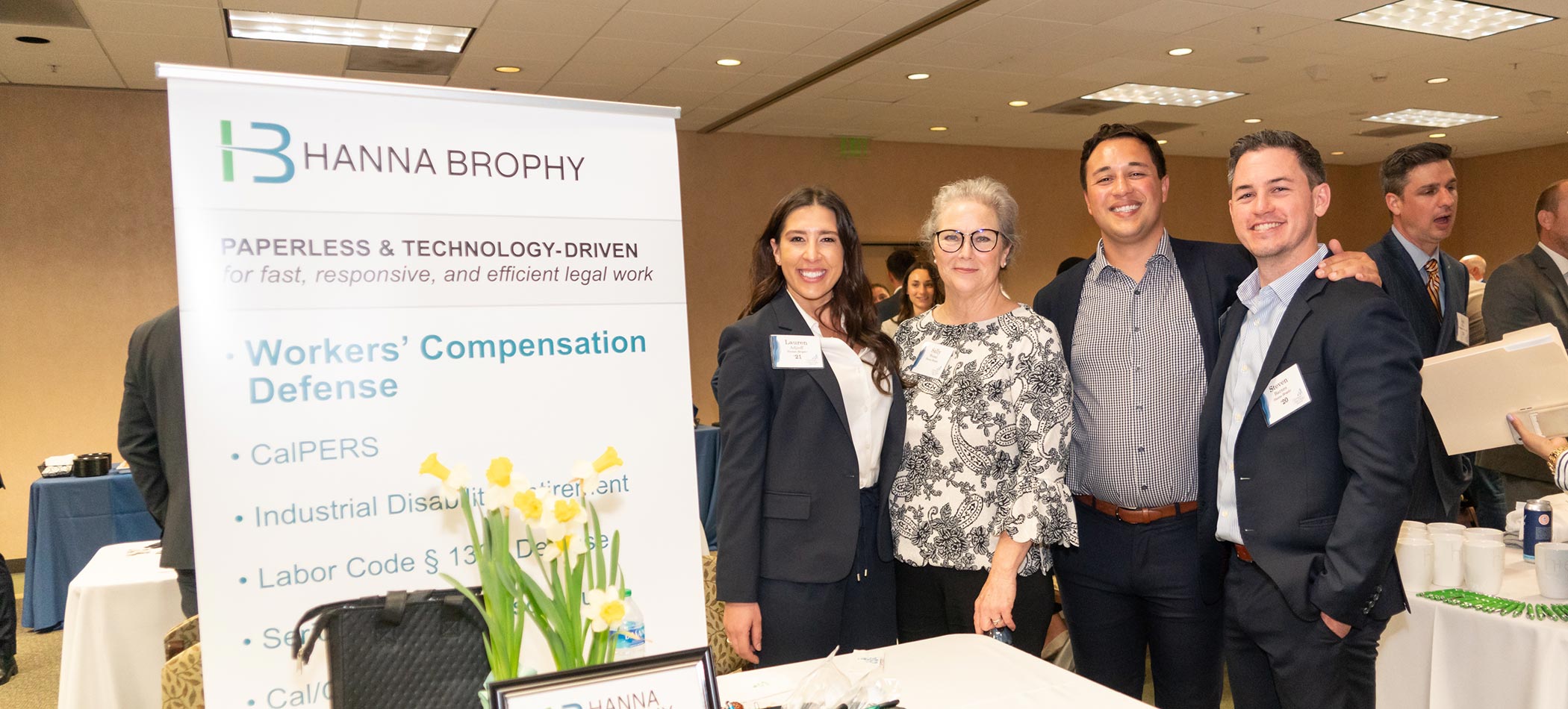
As a USD Law student, you have access to hundreds of resources and programs to help you gain legal experience while attending law school. USD Law graduates work across sectors in a variety of professional positions. A law degree will provide you with the legal skills and training to excel in private practice, at a public interest organization, with a federal, state or local government agency, in a corporate legal department, as a judicial officer in a courthouse and/or in a JD Advantage position. To help you explore the possibilities, the Law Careers team provides a myriad of services.
#HireUSDLaw Portal
Our career services are managed through our career management system, #HireUSDLaw (powered by 12Twenty). #HireUSDLaw is your one-stop shop for scheduling career advising appointments and document reviews, accessing job listings, viewing events, and more!
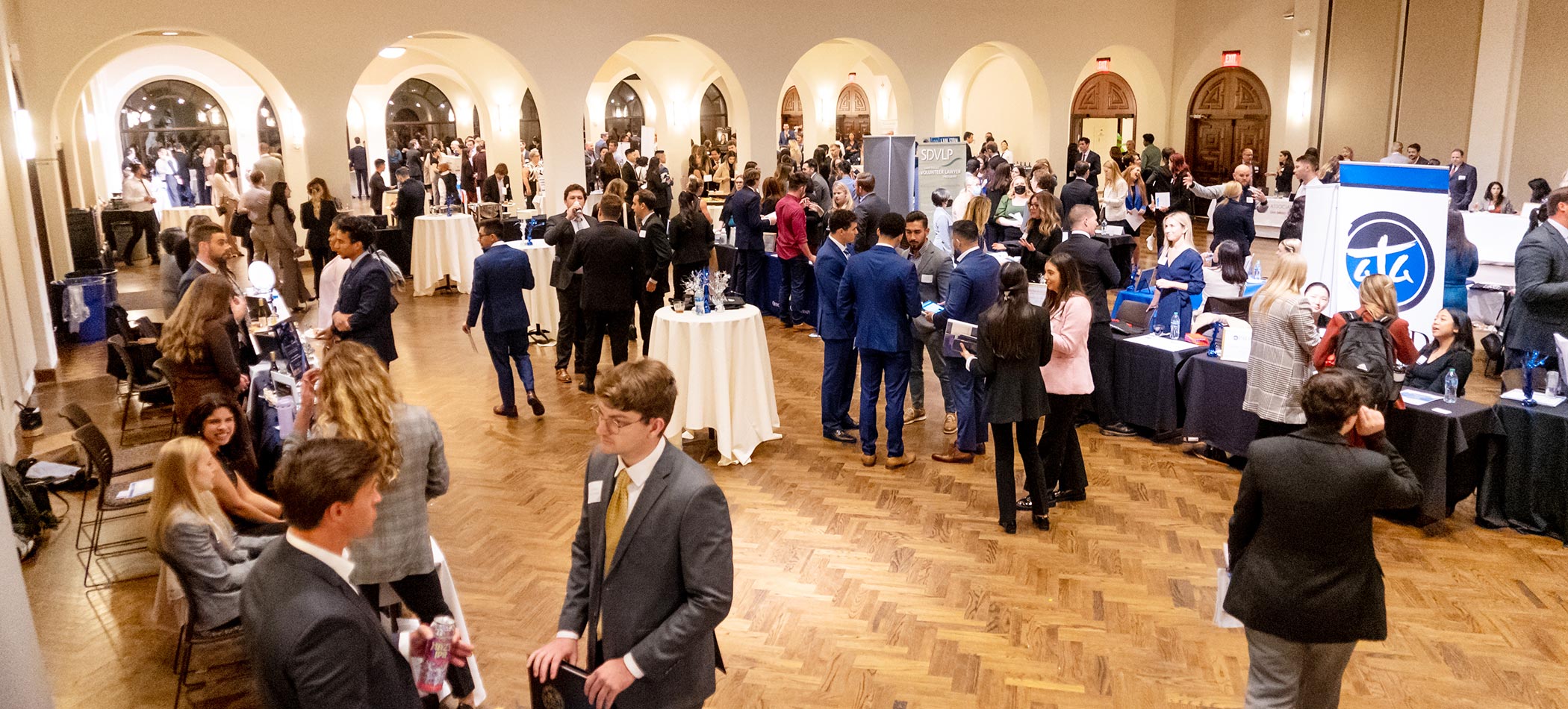
Recruiting Programs and Job Fairs
All JD and LLM students are encouraged to participate in USD Law’s recruiting programs. Students apply for posted opportunities and interview with public and private employers. These formal recruiting programs are just one step in a comprehensive job search. We offer a variety of additional resources to students, including an internal job board, connection to national/regional job fairs and networking opportunities. Be sure to schedule an appointment with a career advisor each semester to discuss your job search strategy.
Recruiting Programs
All types of employers participate in the Fall Recruiting Program, including NALP and large law firms, small to mid-sized law firms, public interest organizations, government agencies and corporations. The Spring Recruiting Program consists of small to mid-sized law firms, public interest organizations, government agencies and corporations. For detailed information on the spring recruiting program, students should review the Recruiting Guides in #HireUSDLaw’s Resource Library.
Reciprocity
Reciprocity allows USD Law students and graduates to gain access to, and use, the services of other law school career offices. Usually, reciprocity is given for a limited time (typically 3 months). Many law schools also have restrictions during their recruiting periods and may restrict certain access to resources depending on student class levels.
- Professional Development Opportunities
- Job Fairs
Business Cards
Graduate students in the School of Law may order USD degree candidate business cards for networking and recruiting purposes. 100 cards may be ordered for $29.00 and picked up at USD’s Copy Center located on campus in Maher Annex.
Choose from the following degree programs:
JD Candidate
JD/MBA Candidate
JD/IMBA Candidate
JD/MA Candidate
LLM in Business and Corporate Law Candidate
LLM in Comparative Law Candidate
LLM in International Law Candidate
LLM in Taxation Candidate
Questions regarding what content to include on your cards should be directed to lawcareers@sandiego.edu.
Questions regarding the website should be directed to the USD Copy Center at usdcopy@sandiego.edu.